A Recursive Shortcut Bug in Older Versions of Windows
A translated 2012 Windows experiment about recursive shortcut folders, Explorer crashes, and the risks of treating interface glitches as file protection.
Originally published and republished on Reverse Everything
I originally wrote this investigation on September 28, 2012. This English translation preserves my original findings. The bug described here has already been patched and is no longer reproducible on current Windows versions.
Historical safety note
This is a historical account of a Windows bug that has since been patched. Do not reproduce it on systems you do not own or administer, and do not treat it as data protection.
We all know what a shortcut is. But what happens if a shortcut points to itself?
Creating a shortcut to a shortcut normally just copies it. But what happens if you force that kind of shortcut into existence byte by byte?
That is not exactly what I want to talk about. Instead, I want to document a folder behavior that made programs crash just by seeing it.
Yes, just by seeing it. You will not even have time to click the folder.
You will not be able to enter that folder with ordinary file managers.
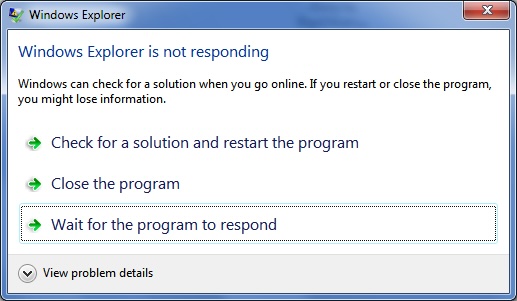
But a shortcut is still involved, and I will explain how I found the behavior and what I tried to use it for.
Background
When I was at university, I had plenty of time, and I studied Windows in every possible way.
I dug through every system folder and the whole registry. I looked for glitches, and I found them.
That was a long time ago, but I remembered one interesting glitch that I want to describe in this post.
One day I noticed that if you drag any folder into Start, All Programs, Windows creates not a shortcut, but a folder.
You can drag it back to the desktop, and it looks like a folder, but behaves like a shortcut.
That confused me, so I started digging deeper.
I found that these folders are also created automatically in Network Neighborhood, and they behave the same way.
I realized that Explorer cannot show the real contents of such a folder.
After launching the console, I was able to reach the files inside.
There were two files, desktop.ini and target.lnk.
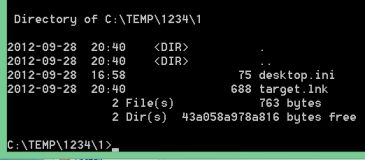
If you rename or delete one of those files, Explorer starts showing the real contents.
In desktop.ini, I found this text.
[.ShellClassInfo]
CLSID2={0AFACED1-E828-11D1-9187-B532F1E9575D}
Flags=2
The shortcut pointed to the folder I created at the beginning.
This interested me, because I realized that such a folder could contain other files, and nobody would see them.
At university, all computers had limited access. My folder with personal files could be deleted by any student, and I did not have my own computer at the time.
Flash drives did not exist there yet. Floppy disks were unreliable, so storing my files on university computers was unsafe.
I realized that nobody would see my files in such a folder, while I could still access my own folder directly through the internal path of the shortcut folder.
But that did not protect the personal files themselves. The folder could still be deleted together with my data.
I kept experimenting with the interesting folder. I tried replacing target.lnk with my own shortcut and watching what would happen.
You can change the shortcut icon, and in that case the folder icon changes too.
Then I created a shortcut to the same desktop.ini file and renamed it to target.lnk.
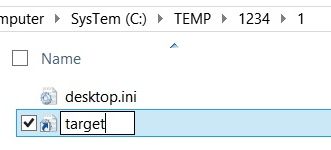
I did not believe the effect at first, and I did not understand what was happening. After the rename, Explorer immediately showed an error and restarted.
I went back into the folder I had created, and as soon as I saw it, Explorer crashed again.
I started investigating the strange effect and understood that Explorer was trying to read the properties of the shortcut folder, and those properties redirected it back to the same folder again. The result was a loop.
I tried opening the folder with different programs. Even Total Commander crashed when trying to enter it, although with a delay. The only reliable way to enter it was through the console.
Then I realized that this folder would store my data well, because none of the other students could even click it to delete it.
What I Did in 2012
What follows is the sequence I used at the time, preserved as part of the original account.
For the shortcut folder to work properly, it needs the following
- The folder must have the
Systemattribute. - The folder must contain a
desktop.inifile with the correct content. - The folder must contain a
target.lnkshortcut that points to thedesktop.inifile in the same folder.
There are pitfalls when creating this folder through Explorer
- The
Systemattribute must be set on the folder before creating the internal files. - The data must be written to
desktop.inibefore putting it into the folder. - Before putting
target.lnkinto the folder, you need to re-enter the folder.
Creating a protected folder that works on every Windows file system
- Create an empty folder, preferably not on the desktop.
- Create a subfolder, put your data there, and remember the path.
- Set the
Systemattribute on the original folder. - Create a text file named
desktop.txtand write the data shown above into it. - Rename
desktop.txttodesktop.ini. - Create a shortcut to
desktop.ininamedtarget.lnk, and Explorer will restart.
After that, enter your subfolder only by address, preferably not through Explorer because it stores previous paths.
For example, run explorer.exe <folder address> from the console, and the history will not be saved, so nobody can discover the path.
To automate creation of such a folder, I wrote this script.
Dim arg, WSHShell, fsobj, file, link

Set arg = WScript.Arguments
Set WSHShell = WScript.CreateObject("WScript.Shell")
Set fsobj = WScript.CreateObject("Scripting.FileSystemObject")
If arg.Length = 0 Then
WSHShell.Popup "Drag a folder onto this file"
End If

If arg.Length > 0 Then

'Set the folder attribute to System
fsobj.GetFolder(arg(0)).Attributes = 1

'Write desktop.ini
Set file = fsobj.OpenTextFile(arg(0) + "\desktop.ini", 2, True)
file.Write "[.ShellClassInfo]" + vbCrLf
file.Write "CLSID2={0AFACED1-E828-11D1-9187-B532F1E9575D}" + vbCrLf
file.Write "Flags=2" + vbCrLf
file.Close
'Create target.lnk shortcut pointing to desktop.ini
Set link = WSHShell.CreateShortcut(arg(0) + "\target.lnk")
link.TargetPath = arg(0) + "\desktop.ini"
link.Save
WSHShell.Popup "Killer folder created"
End If
I saved it as mkFolderKiller.vbs, then dragged the folder onto it.
Path Binding for the Protected Folder
The created folder depends strictly on its original path.
If you rename it, you will be able to enter it.
I found a solution, not a perfect one, but it allows the folder path to change.
Create an empty folder somewhere the user cannot reach.
For example, place it deep inside system files, if you have access.
Set its System attribute and write desktop.ini into it, but do not create the shortcut yet.
Now do the same thing on another drive where the data folder should live, for example on D:\.
Take the shortcut to desktop.ini from drive C:\ and put it into the folder on drive D:\. Only after that, create the shortcut inside the folder on drive C:\.
As a result, the folder on drive D:\ will perform the function we need even if its address changes.
Protecting a Folder on a Flash Drive
There is not much to say here.
I think many people have already guessed that you can create a folder containing protected folders for every drive letter.
Only you can access your protected folder if you know the full path.
Conclusions
At the time, I treated this folder as a curiosity, a test, and a primitive form of protection.
Is this reliable protection
Of course not. There are many other methods that are more reliable.
An experienced user will not have trouble figuring it out and getting into such a protected folder.
But it will confuse people for a while. Ordinary users will not be able to get into it at all.
Which Windows versions does this folder work on
I personally performed all experiments at university on Windows XP and 2000.
Later, I also tested it on Windows Vista, Windows 7, and Windows 8.
Regardless of system bitness, it works on all versions.
Can this folder disrupt the computer
Yes. It can repeatedly crash or restart programs that try to access it, which may interrupt work or cause data loss. It should never be used on another person's system.
How to delete this killer folder
You can enter the folder through the console and rename one of the two files, or remove the System flag from the folder.
Or you can rename the root folder to neutralize the loop.
The original downloadable example
The original article included an archive to unpack into C:\TEMP\1234, then re-enter.
That archive contained folder 1 with two files, desktop.ini and target.lnk, bound only to that path.
I hope the article was interesting, and that I managed to explain everything clearly.
I found many more glitches that I had not seen written about anywhere. Maybe I will tell another one next time.