The iPhone Storage Controls Apple Left Out of Files
Keeping local files on an iPhone should not mean constantly deciding what to delete. That frustration led me to bring DiskPress to iOS.
When an iPhone starts running out of storage, the conversation usually becomes a negotiation with your files. Which downloads can go? Which project do you no longer need? What can you move somewhere else?
But sometimes the files are there for a reason. You keep documents, reference material, and completed projects locally because you want them available when you need them. Deleting them solves a different problem.
Files has a Compress command, but it creates a ZIP archive. That adds an extra step between you and the documents you wanted to keep using. I wanted to leave my folders alone and change how much room their contents occupied.
The frustrating part is how much the iPhone already knows about storing files efficiently. To understand what is missing from Files, it helps to look underneath it.
Two files do not always need two copies of the data
APFS, short for Apple File System, is the system that organizes files on an iPhone's internal storage. It also runs on iPad and Mac. One of its most useful features is file cloning.
An APFS clone is a separate file that initially shares the original's stored data. Each file has its own name and location, but the device does not need to write out the entire contents again. There is some extra metadata, rather than another full copy of the data.
This makes sense for photos and videos passed between apps. When a local media file is handed over using an APFS clone, the receiving app can have its own copy without immediately doubling the storage used by the media. If it changes its copy, the original stays intact. That depends on the transfer using cloning. An export that converts a photo or re-encodes a video creates different data and cannot simply share all the original blocks.
The mechanism is called copy-on-write. APFS stores changed data separately, while unchanged blocks can remain shared. Editing or deleting one clone does not edit or delete the other. These are independent files, with different behavior from hard links to a single file.
Apple already uses clones inside its own file workflows. Its FileProvider explanation describes how the system maintains clones during uploads so apps can continue accessing and changing local files consistently.
But creating a clone during a copy operation leaves another problem unsolved. What about identical files that were already stored independently in different folders?
The other half is compression you never have to unpack
Apple's storage stack also supports native, lossless filesystem compression. Supported files can occupy fewer bytes on disk while applications still read their complete, original contents. Apple documents compression and cloning among the filesystem capabilities its AppleArchive tools can preserve and use.
The word "lossless" matters. This does not lower image quality, shorten a document, or remove information. It changes the representation stored on disk, and the operating system handles decompression when the file is read.
A file can therefore still report 100 MB of contents while occupying less physical storage. Its name, extension, and location do not need to change. Filesystem compression predates APFS, but it works alongside APFS cloning on supported Apple storage.
I already liked this general idea on Linux, where OpenZFS exposes compression and deduplication settings. The implementations differ, but the benefit is familiar. Applications keep using ordinary files while the filesystem stores them more efficiently.
On iPhone, Apple keeps these capabilities largely below the user interface. Files gives us no ordinary control to apply native compression and deduplicate the contents of selected folders in place.
Bringing those controls to Files
That is why I built DiskPress for Files, my newly released iPhone and iPad version of DiskPress for Mac. It uses the same compression and deduplication engine as the Mac app, with a workflow built around folders you choose through Files.
The app does the missing work. It checks for identical file contents, verifies matches, and uses APFS clones to let eligible copies share storage. It can also compress eligible files, and identical copies can share that compressed data.
This distinction matters when calling it "APFS deduplication". APFS supplies the cloning mechanism. DiskPress supplies the discovery and verification that turn existing, independently stored duplicates into clones. APFS does not automatically search all your folders and merge matching contents just because the device uses APFS.
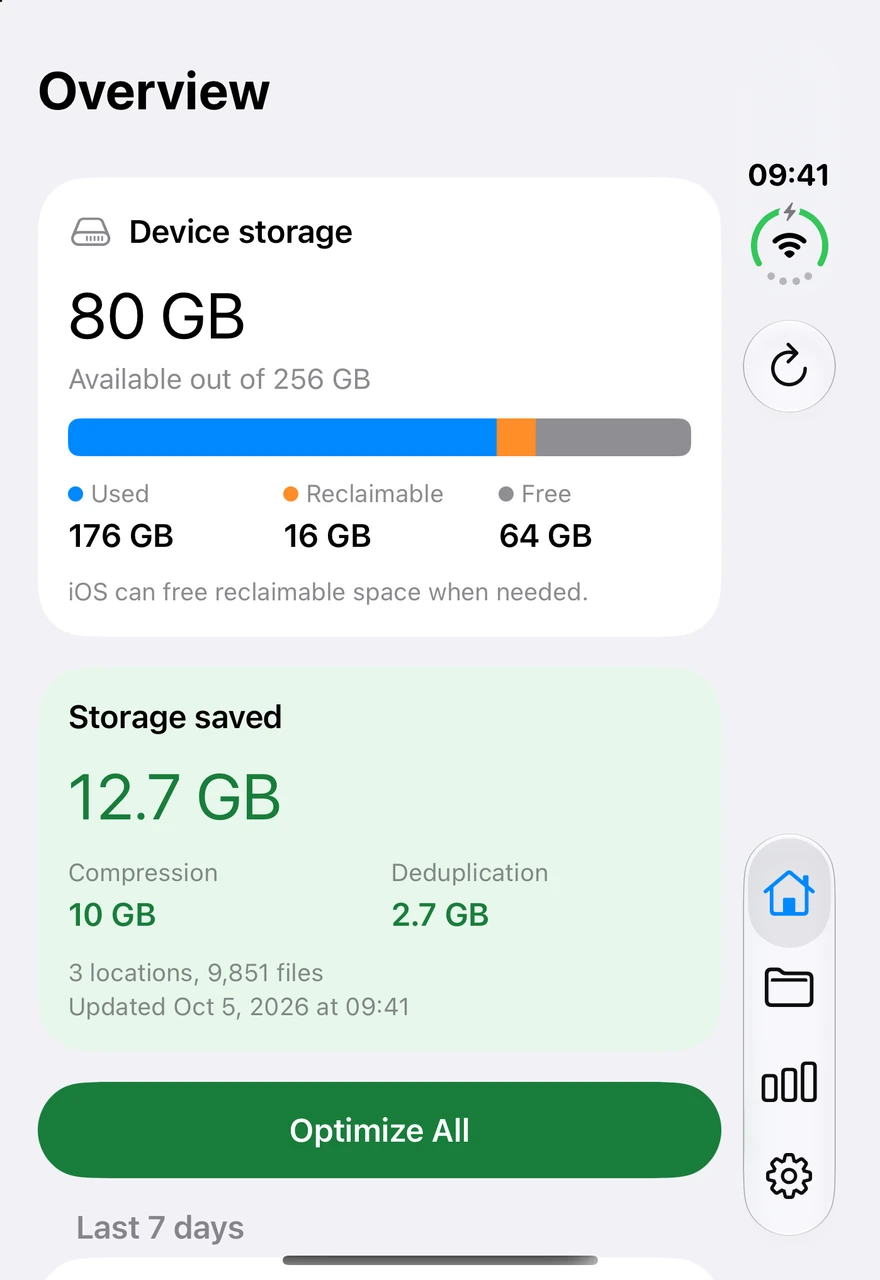
DiskPress for Files is not a cleaner or a duplicate finder that asks which copies to delete. It does not remove your documents or discard duplicate files. Every copy stays available at its existing path. The goal is to make what you keep use less storage.
Suppose two identical files each contain 100 MB, and each is currently stored separately. If their contents happen to compress to 60 MB, the two techniques can work together like this.
| Storage method | Data stored for both files |
|---|---|
| Two ordinary, separate copies | 200 MB |
| Both copies compressed separately | 120 MB |
| Both sharing the same compressed data | About 60 MB, plus metadata |
Both files still contain the full 100 MB of information. These are illustrative numbers, not a promised compression ratio. Files that are already compressed, or already share storage, may have little left to save.
Add your folders, then start both operations with one tap
The useful part is how little of that explanation you need to remember when using the app.
- Open Locations and use Add Location to choose a supported local folder through Files. Choose a folder inside "On My iPhone" or "On My iPad", rather than the top-level location itself.
- Set its mode to Deduplicate + compress. Each saved location can use both operations, compression alone, or deduplication alone.
- Tap Optimize All to process the included saved locations, or optimize one location separately. Once those folders are set up, one tap starts compression and deduplication together.
You can also use Choose Files or Folder for a selection you want to process once. Review it, choose the combined mode, and tap Optimize.
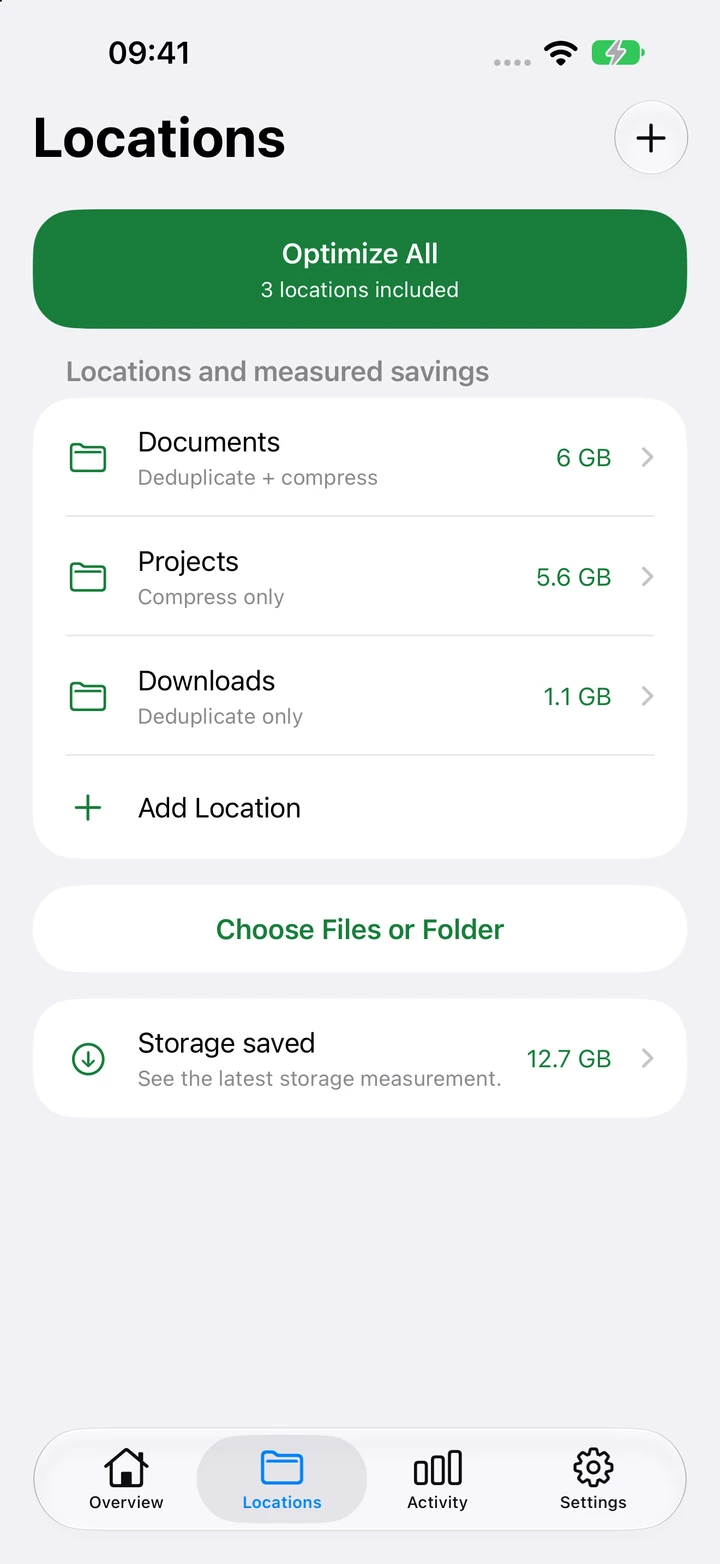
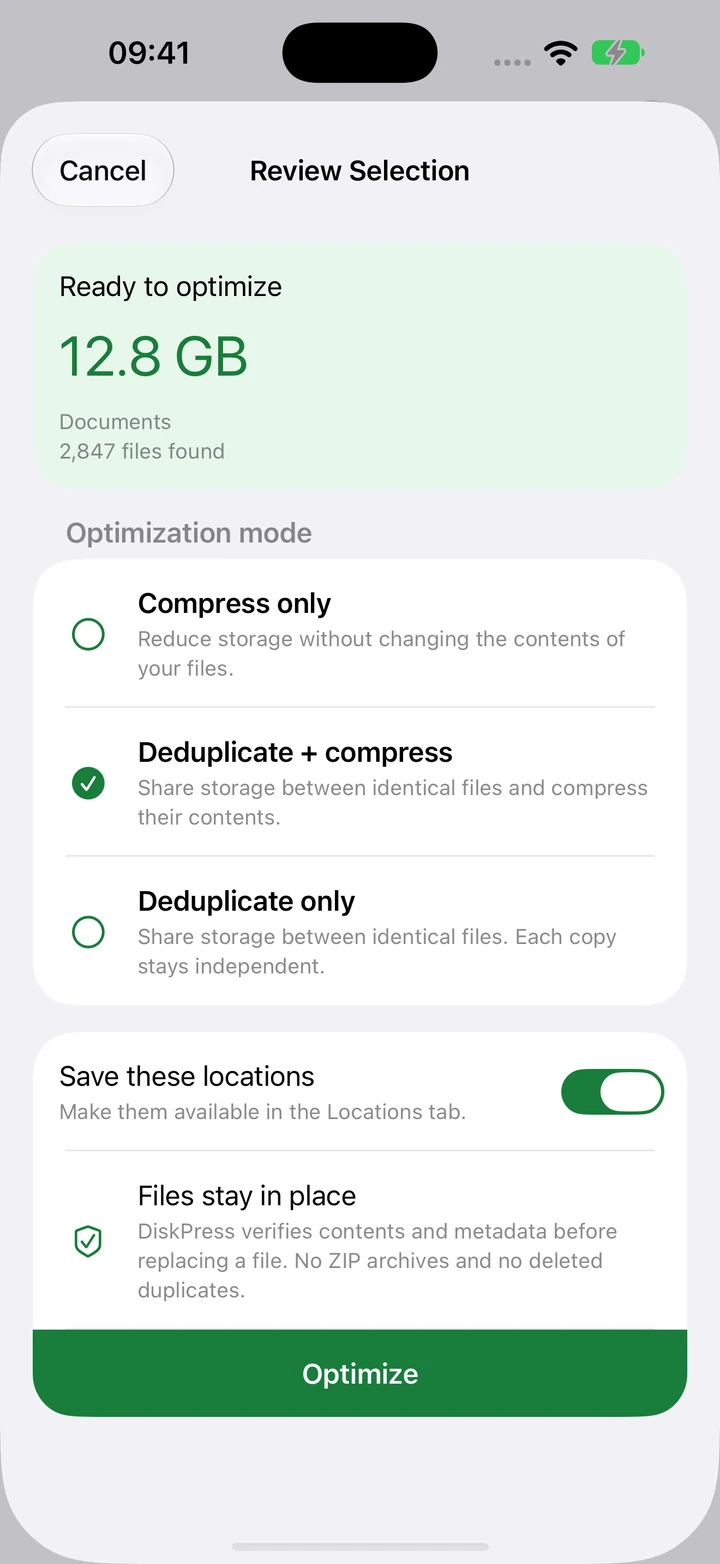
The iOS version is deliberately manual. It does not inherit the Mac app's automatic folder monitoring or command line. Saving a folder gives you a convenient place to return, without scheduling future optimization.
Finish the run and get on with your day
Once optimization finishes, close DiskPress for Files and use the device as usual. You do not need to run the app to open your optimized files.
There is no archive to extract and no DiskPress reader between you and your documents. Native filesystem support handles the compressed data and shared blocks. Your usual apps keep opening the files where they already are.
This is the part I find most satisfying. The app gives me control over the storage work, then gets out of the way. The result continues working after the app closes.
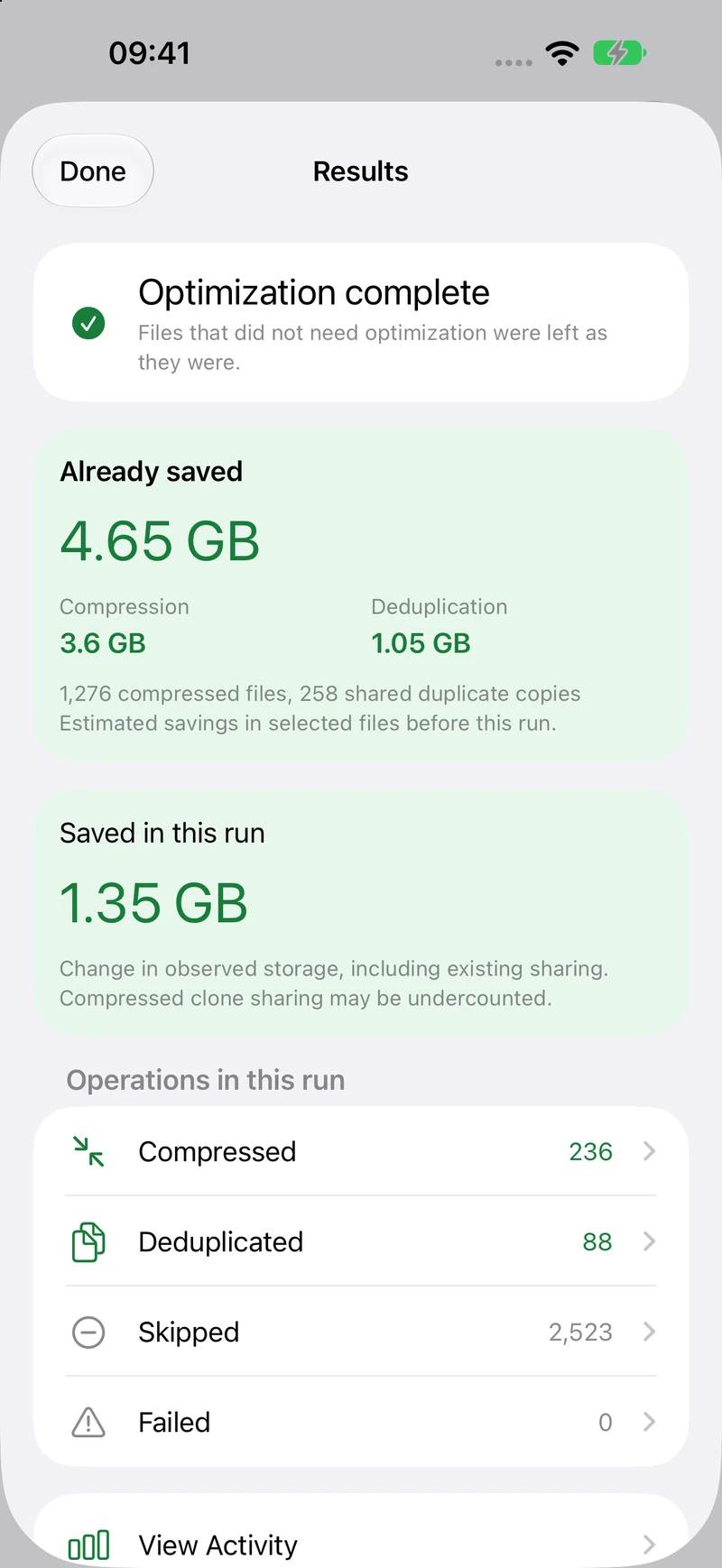
Later edits, replacements, or copies can change those savings. New files need another run when you choose. You can keep using the files regardless.
Leaving during an unfinished run is a separate matter. On iOS or iPadOS 26 and later, a run you started may continue in the background when the system allows it. Otherwise, work pauses safely and can be resumed when you return. The simple "optimize and exit" routine means letting the run finish first.
Most useful when Files holds things you want to keep
DiskPress for Files makes the most sense if you keep substantial local folders on your iPhone or iPad. Documents, text exports, reference collections, and completed projects are useful candidates, particularly when they contain compressible data or identical files needed in several places.
Already compressed formats may offer little additional compression. Mostly settled files are a better fit than folders that are constantly being rewritten. Keep an independent backup of important data, as you would before other operations that rewrite how it is stored.
The app works with supported, writable local APFS locations you authorize. It does not process the Photos library, installed apps, protected paths, iCloud Drive, or other cloud and network providers. The earlier photo and video example explains cloning, not access to your Photos library. Even a downloaded cloud file remains outside this workflow while it is in an unsupported provider location.
External drives may also work when formatted as APFS, provided iOS exposes a writable location and permits the compression, cloning, and replacement operations the app needs. APFS formatting alone does not guarantee that access. Deduplication also requires the matching files to be on the same compatible APFS volume, so an internal file and a copy on an external drive cannot share the same stored blocks.
Finally, a control for the files I am keeping
Apple built remarkably useful storage capabilities into its platforms and left their controls out of the everyday Files experience. DiskPress for Files gives me a way to choose where to use them.
I can add the local folders I care about, start compression and deduplication together, and close the app when it finishes. The documents stay available. The copies stay independent. I keep using my iPhone or iPad as before, with less space occupied wherever the files allow it.
DiskPress for Files is available now for iPhone and iPad running iOS or iPadOS 14 or later. It is a separate app from the Mac version, built on the same engine.