We've Been Reading macOS Disk Space Wrong, and It's Been Even More Confusing Since Tahoe
Why Finder folder sizes, space on disk, and available storage tell different stories. A practical look at macOS compression, APFS, and free space.
When I moved from Windows to Mac more than ten years ago, one of my favorite discoveries was a small Finder feature. I could enable “Calculate all sizes” in List view and see the size of every folder in a column.
That immediately changed how I managed files. Sort by size, open the largest folder, repeat. Within a few clicks, I could find the files worth looking at. It was one of those small improvements that made me wonder why I had spent so long doing things the hard way.
Today, I cannot use that column with the same confidence. A folder near the top can occupy less disk space than one below it.
Finder still has no column for sorting folders by the space they occupy on disk. To compare those figures, I have to open information windows. It feels like using Windows XP again.
The same app, in the same Finder
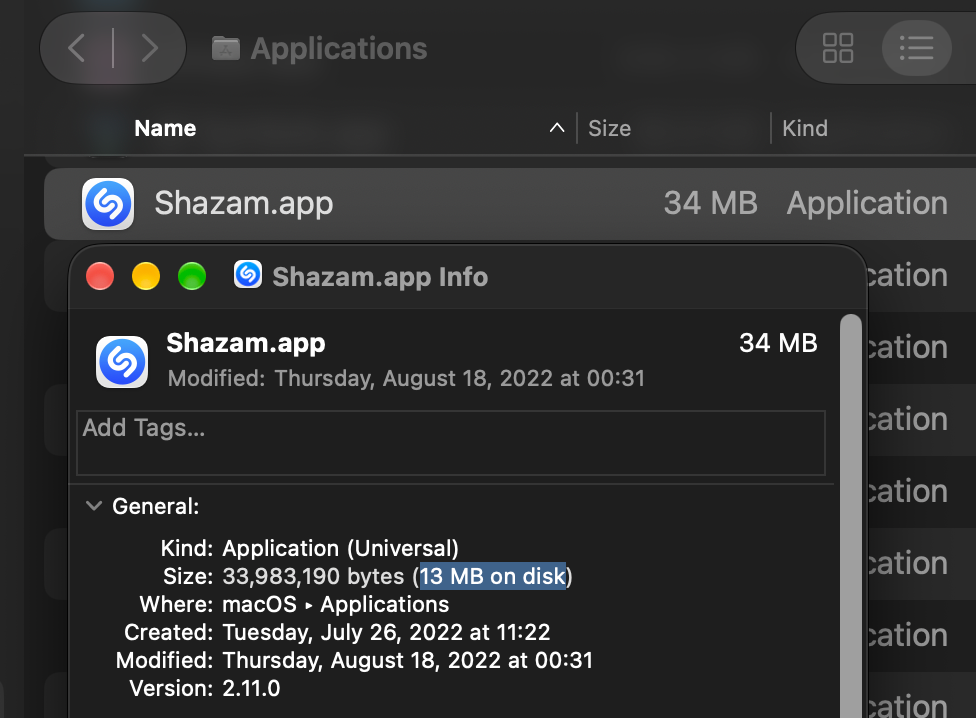
For a simple example, I selected Shazam in Finder and pressed Command-I. The Size column showed 34 MB. Get Info showed 33,983,190 bytes, followed by “13 MB on disk”.
The App Store added to the confusion
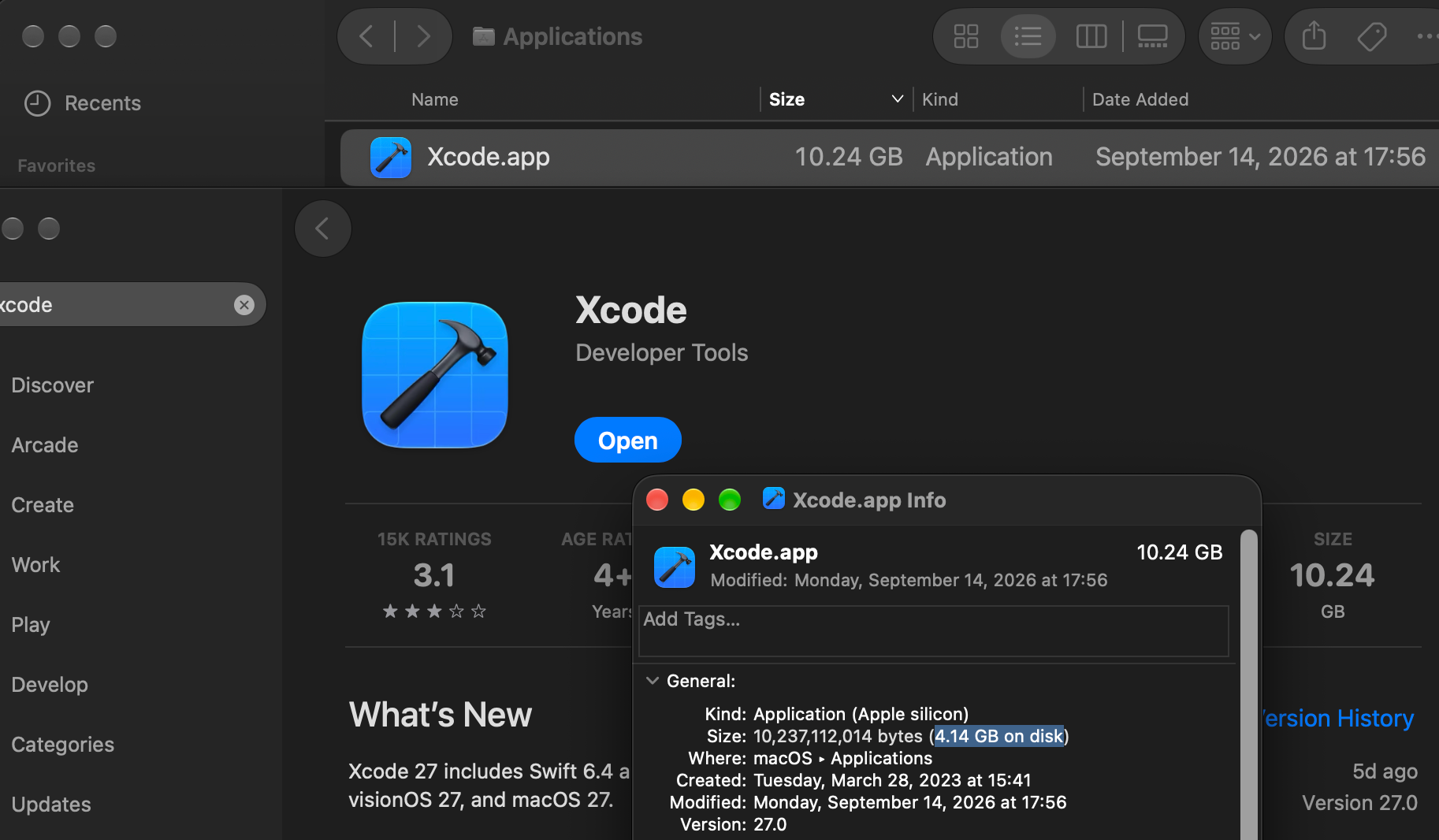
I also checked Xcode 27.0. Both its App Store page and Finder’s Size column showed 10.24 GB. Get Info showed 4.14 GB on disk for that same version.
Reports of larger store listings appeared with Tahoe. In a September 2025 comparison, a Mac user reported that the same version of Affinity Designer 2 appeared as 546.4 MB in the App Store on Sequoia and 2.89 GB on Tahoe.
After downloading it on both Macs, they reported roughly 1.88 to 1.89 GB in System Settings, Storage, Applications. The store figures differed enough that the user wondered whether the store had been compromised.
A shopper sees “Size” and expects it to answer a practical question. Can I fit this app on my Mac? The store listing leaves out a detail about how those apps are installed.
Where the missing megabytes went
The Mac App Store automatically applies filesystem compression to eligible files when installing apps. I checked five installed apps with App Store receipts, including Keynote and Xcode, and found compressed files in all five. You can try the same Get Info comparison with any installed App Store app.
This compression is transparent. macOS stores the contents using less disk space and decompresses them as they are read. The app opens normally, without a ZIP archive to unpack first.
Finder’s Size column and the large number at the top of Get Info report logical size, the amount of file content that applications read. The value labeled “on disk” in Get Info reports allocated size, the storage allocated to those files. Compression reduces the second without changing the first.
Both values are measured in bytes. Small files can also occupy more space than their contents require because storage is allocated in blocks.
My own App Trust Preview displays both values together when inspecting an app.
The savings depend on the content. Already compressed media may gain little or nothing, and APFS does not automatically compress every ordinary file I save.
Compression itself predates APFS. Apple’s documentation of filesystem compression describes support on HFS+ dating back to Mac OS X 10.6. Finder did not suddenly start counting differently when APFS arrived.
A download size adds a third measurement, the data transferred to obtain an app. It can arrive in a compressed package that differs from the installed files. Apple distinguishes download size from install size and currently calls the macOS product-page figure the “universal installation size”. The documentation does not say when the display changed.
A smaller store listing is not necessarily a better estimate of disk use either. Neither the store listing nor Finder’s column shows how much space filesystem compression saves on my Mac.
Since macOS 15, Apple’s documented requirement for an initial App Store download and installation is the final install size plus a small buffer. Suppose an app listed as 2 GB occupies less than 1 GB after compression. Its finished footprint could fit within 1 GB, but that alone does not establish that the installer will accept 1 GB of available space.
I wanted control over the part that saves space
Finder’s “Compress” option creates a ZIP archive. It does not give me a setting to keep an ordinary folder compressed while continuing to use its files in place.
That is the gap I wanted to fill with DiskPress. It applies transparent compression to supported files and folders, with the option to check selected locations again as their contents change. It excludes application bundles and executables.
For apps from other sources, my App Archiver offers “Optimize App”, which applies transparent compression while keeping supported apps installed and ready to open. Updates or rewrites may replace compressed files, so I check their allocated sizes again afterward.
Looking in another window adds another question
System Settings, General, Storage seems like the obvious place to settle everything. It offers a storage bar, app lists, and, under Documents, views for Large Files, Downloads, and a File Browser. But what is included in each category?
Apple’s category definitions explain that Documents includes files in the home folder that are not assigned to other categories. It is not simply the size of the Documents folder. Applications excludes system applications. System Data includes things such as caches, logs, temporary files, and app support data.
An app can also create caches, documents, and downloadable content outside its application bundle. Xcode’s 4.14 GB on disk, for example, does not include everything it might download or create elsewhere as I use it.
Apple’s Storage guide does not explain how every Size field accounts for compression. I use those views to locate files to inspect. A large System Data value is not a single folder I can safely delete.
Cloud files can be visible in Finder without their full contents being downloaded. Finder’s iCloud Status column helps me check whether a file is stored locally. The iCloud storage meter measures the cloud account, a separate pool of storage.
For the disk itself, I use Disk Utility’s Info panel and check whether I have selected a volume or its APFS container. A container is a pool of storage that several volumes can share. Adding their reported free-space figures together would count the same room more than once.
I allow calculations to finish and compare readings taken close together, because background activity can change the figures while I am looking.
I still could not predict what deleting a folder would free
Get Info’s “on disk” figure looks like the answer I wanted, until I ask how much of that space belongs only to this folder.
Imagine copying a 10 GB file on the same APFS volume. With an APFS clone, the copy can initially share the original’s data blocks. I get two separate files without needing another complete 10 GB of storage.
If I edit one, APFS stores the changed data separately. The unchanged parts can remain shared. Apple describes this behavior in its APFS overview.
Cloning should not be confused with automatic deduplication. APFS does not search for independently stored identical files and merge them on its own. Apple’s original APFS FAQ makes that distinction.
Both files can still report a logical size of 10 GB. Adding up their allocated sizes can count shared blocks more than once. Deleting one copy cannot free the blocks the other copy still needs.
APFS also supports sparse files, whose logical length can include empty regions without storage allocated for every byte.
A snapshot preserves an earlier state of a volume. If I delete or replace a file, a snapshot may still need its old data blocks. The file can disappear from the folder while those blocks remain occupied.
Disk Utility’s Show APFS Snapshots lists the snapshots still on the selected volume.
Cloning, sparse files, and snapshots were already part of APFS when Macs began moving to it with macOS High Sierra in 2017, as Apple’s WWDC presentation shows.
Even space that is occupied can be available
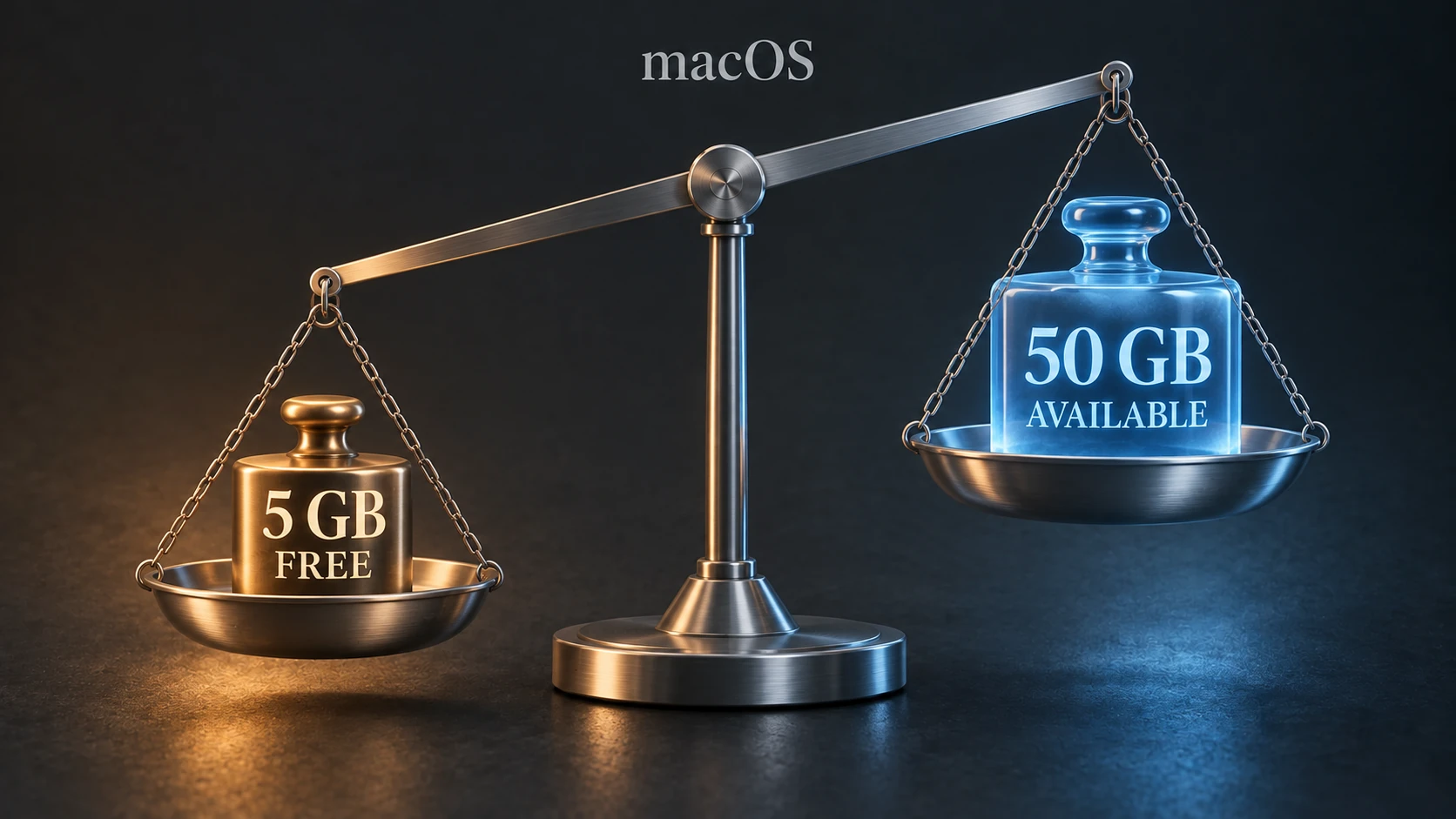
Imagine starting with 5 GB free and 5 GB available. I delete files and empty the Trash, and both figures rise to 50 GB. Later, after using the Mac for a while, free space is back down to 5 GB, even though available space still says about 50 GB.
It looks as though the cleanup achieved nothing.
Free space is currently unallocated storage. Purgeable space is occupied storage that macOS considers reclaimable. Available space can include both. Apple documents this in its Disk Utility guide.
The room I cleared can be used again as system and app caches grow or snapshots retain data from later file changes. Apple confirms that certain system caches are recreated automatically as needed. If the newly occupied space is classified as purgeable, it can still count as available.
Those numbers illustrate a possible outcome, not a rule that macOS always fills the disk back to 5 GB free. Apple says Time Machine stores local snapshots only when there is plenty of free space, counts their storage as available, and removes them as they age or as space is needed. Other APFS snapshots should not automatically be treated as disposable Time Machine snapshots.
There is no simple Finder setting that tells macOS to keep the space I just recovered empty. I can choose which files to delete, but that does not reserve the resulting free space for my next task.
Free space still tells me what is empty right now. By itself, it cannot tell me whether my cleanup worked or how much more I can store. In DiskPress, I show free and reclaimable space separately so I can see where the room went.
For everyday storage planning, that leaves me relying on Apple’s “Available” figure and trusting macOS to reclaim the occupied part when I need to write files. Apple says Time Machine snapshots should not prevent downloads, file copies, or software installations.
But that promise has not always held up.
In a September 2016 report on Ask Different, a user could not copy a 70 GB file despite having 142 GB reported as available, including 83 GB purgeable. In an October 2024 Apple Support Community post, another user reported being unable to download footage through Frame.io because the app recognized only 20 GB free while the Mac had 700 GB purgeable.
There is more recent testing too. In August 2026, Howard Oakley tested snapshot purging on macOS Tahoe 26.6.2, using two volumes on an external APFS disk. A snapshot retained about 95 GB, and copying a 12.89 GB file exposed inconsistent behavior. Even when targeting the volume holding the snapshot, macOS failed to purge it as expected on at least two occasions.
These reports show why I cannot dismiss a failed copy or installation just because “Available” looks large enough. An app’s space check or macOS’s reclamation can still get in the way. I also leave room beyond the final file size, because downloads, updates, and temporary working files can need extra storage while the operation is underway.
The numbers leave me guessing
“Free space” sounds like the number I ought to be able to trust. It describes empty storage, yet macOS and my apps can put that room to work again through caches and retained snapshots. Clearing space does not mean it will stay empty.
“Available” is supposed to tell me how much I can use, including space macOS expects to reclaim. But the failures above show that I cannot always turn that number into files on disk. I may have enough room in the storage display and still be unable to finish a copy or download.
Then the App Store gives me an app size I cannot directly compare with either. I still have to install the app to see how much space its files actually occupy on my Mac.
When space is tight, macOS can leave me unable to tell from its numbers whether a download will fit. I have to try. If it fails, I measure some files or folders, delete what looks like enough, and try again. Their reported sizes still do not tell me exactly how much usable space I will recover. The next attempt can fail too, and I am back to finding more to delete.
I started with a Finder feature that used to save me time. I ended up needing to understand filesystem behavior just to decide what might fit on my Mac. The recurring questions on support forums make sense. Disk space is much more complicated than macOS’s labels make it look.