More Space on My Mac Without Deleting Files or Apps
How file compression, deduplication, and app archiving differ, when each can save space, and how to evaluate the results with DiskPress and App Archiver.
Last updated
When I need more space on my Mac, I do not always want to delete something. A folder can still be useful, and an app I haven't opened for months might be exactly what I need later.
I wanted to keep those things and have them take up less room. My files should stay in their folders. My apps should stay easy to find.
The idea came from my work with Linux, another operating system, and a storage system called ZFS. It can pack information more tightly and avoid storing identical information several times. With those features enabled, the files stay where they are and open as usual. I wanted that convenience on my Mac.
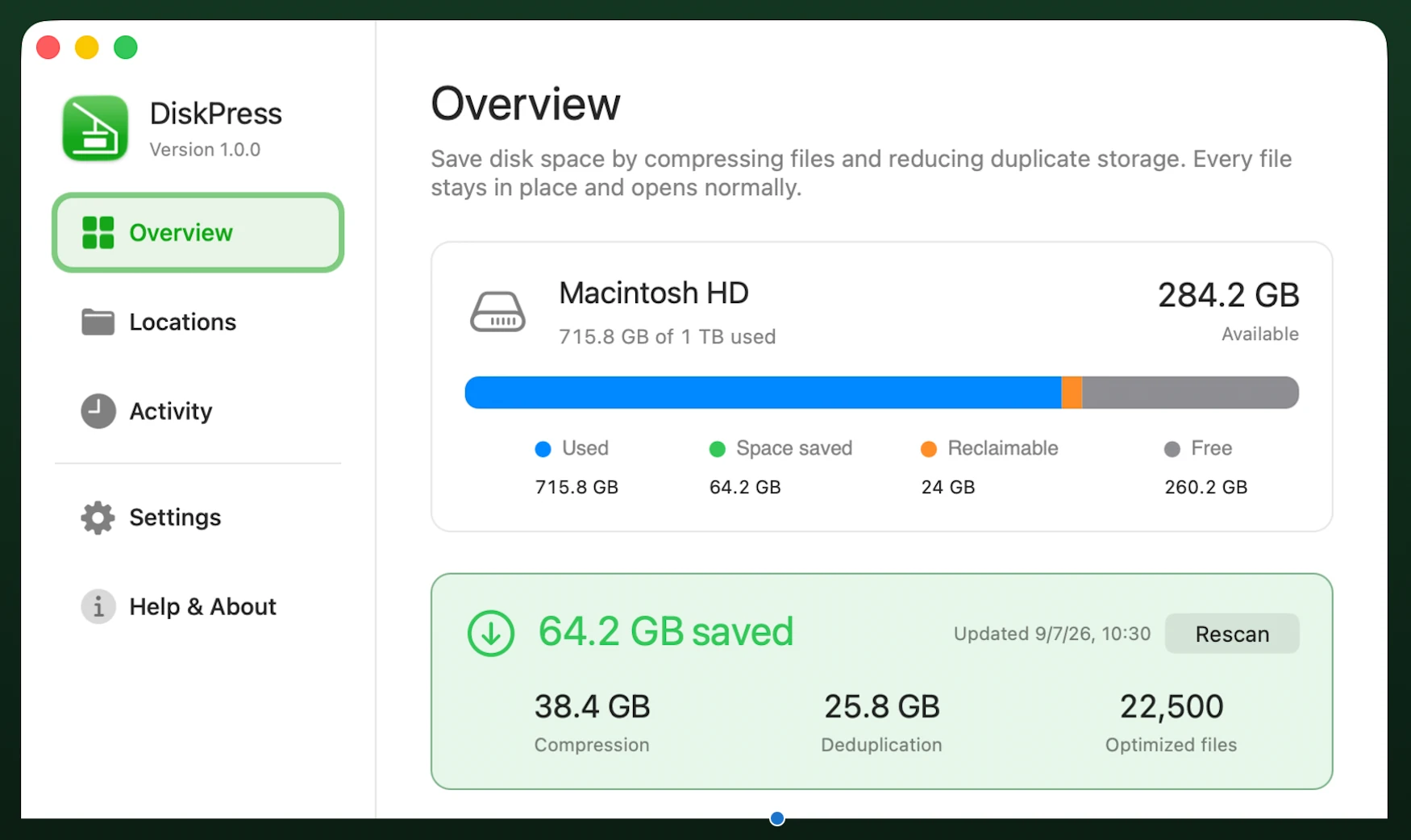
After months of work, I built it into two apps. DiskPress saves space used by files. App Archiver saves space used by apps.
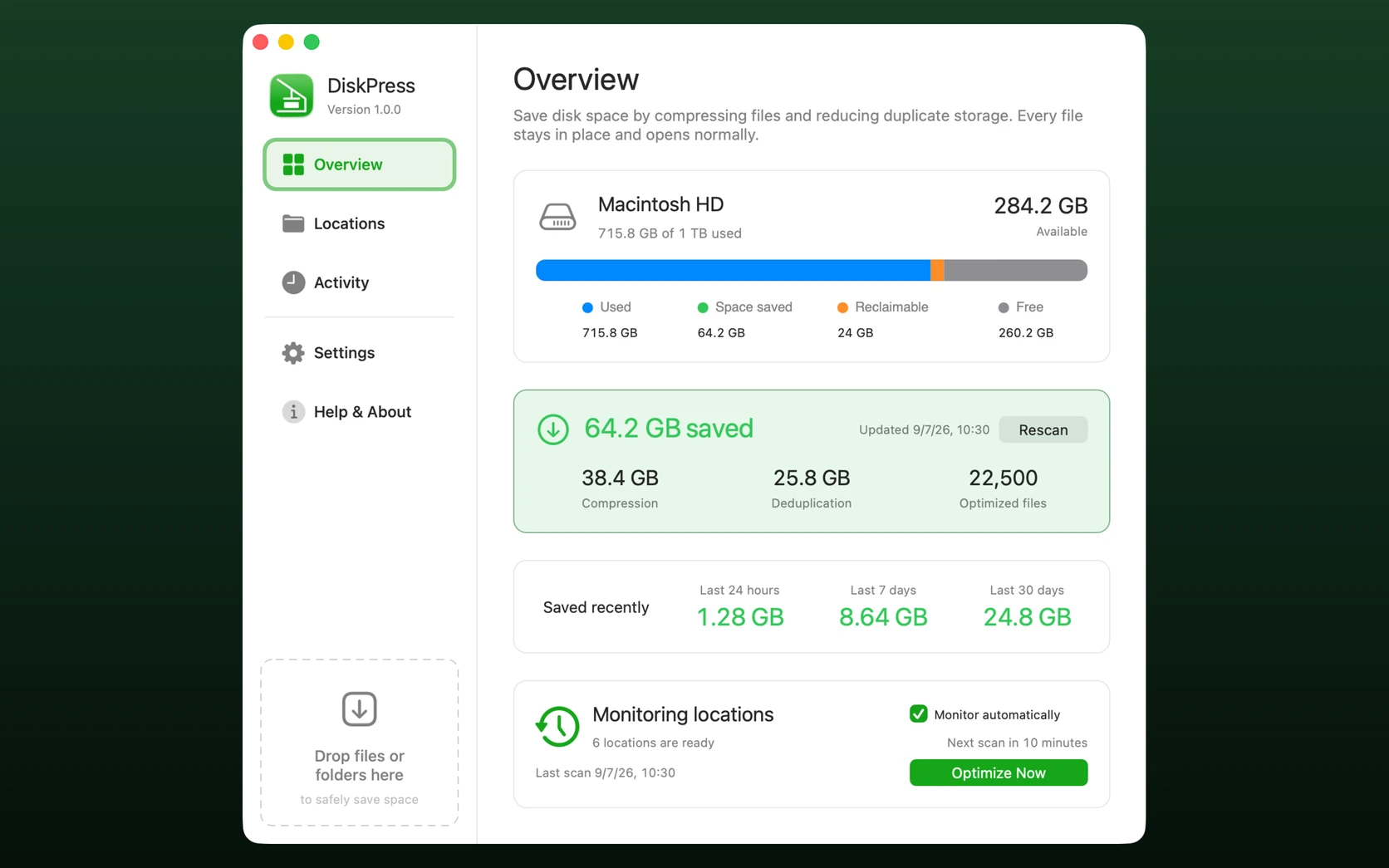
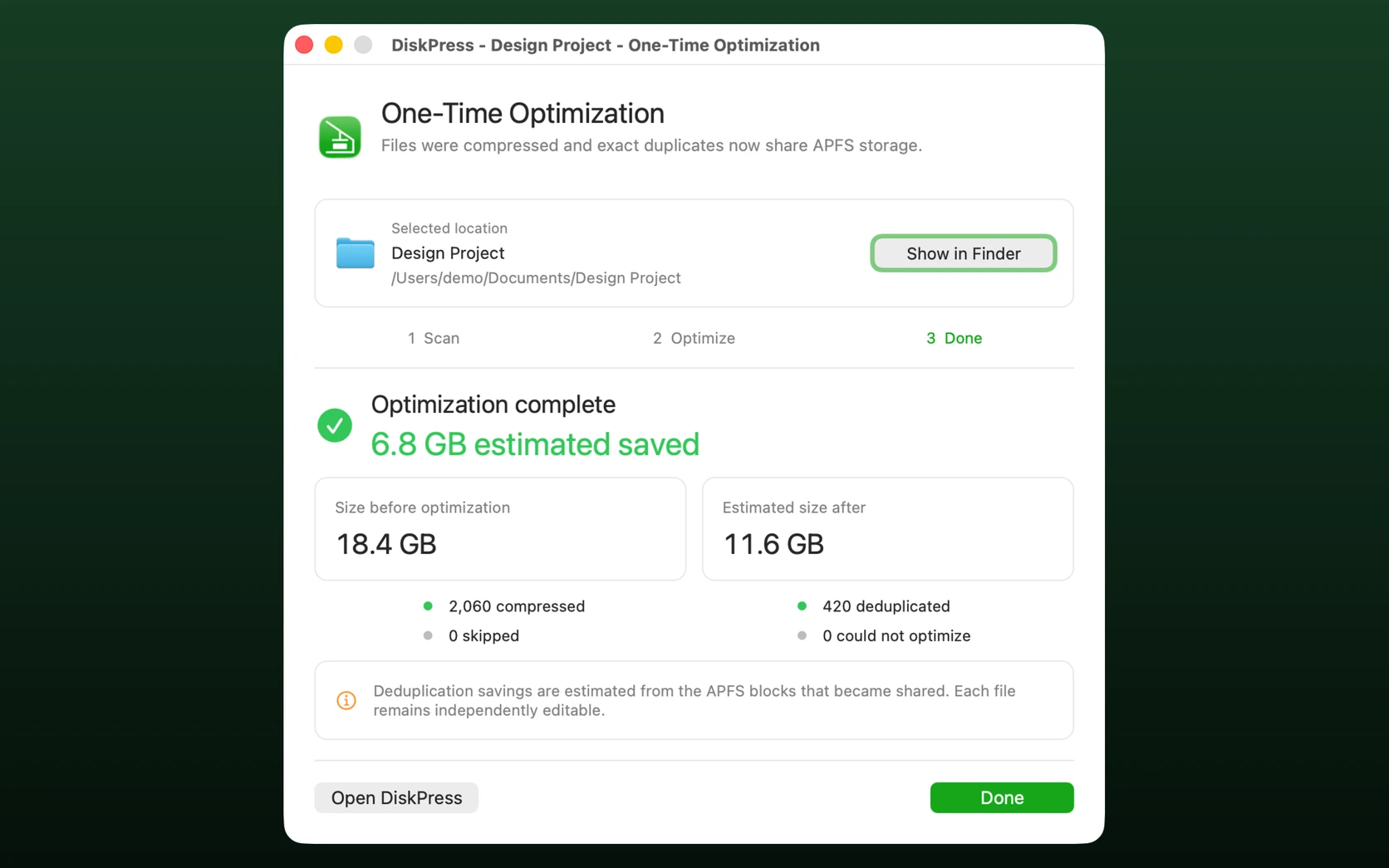
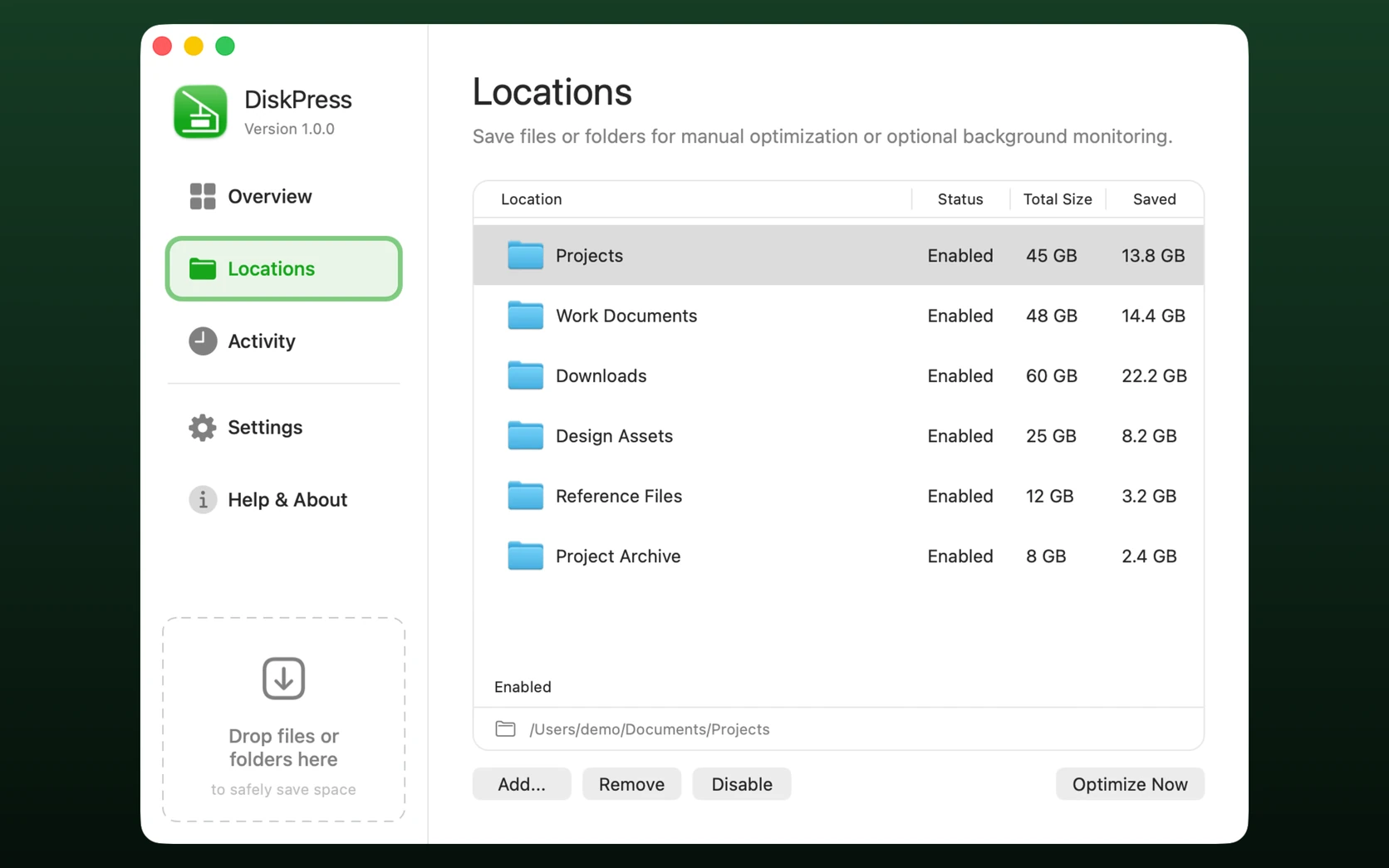
I develop both apps. The screenshots illustrate their interfaces using example data. They are not measurements from a benchmark.
File Compression saves space without changing your files
File compression stores the same information in less disk space. DiskPress uses lossless compression for supported files, so nothing is cut out or reduced in quality.
You keep opening the files the same way as before. They stay in the same folders, and your Mac handles reading them. There is no ZIP file to unpack each time you want to use something.
A file can still show the same size because it contains the same amount of information. What gets smaller is the space needed to store it on disk.
You can also quit DiskPress when it finishes. The files keep their space savings and continue to open normally.
File Deduplication saves space without deleting copies
Imagine that you have the same document in three project folders. You want each folder to contain everything it needs, so deleting two copies would be inconvenient.
File deduplication lets identical copies share the same stored information. DiskPress checks that the files match before doing this. All three files stay in their folders, ready to use.
For supported copies on the same compatible disk, three separate copies can use roughly the space of one. If the contents also compress well, they can take up even less room.
You can still edit or delete one copy without changing the others. Your Mac keeps track of the differences using a storage feature built into macOS. You do not have to manage that yourself.
Choose what DiskPress works on
You can select files or folders, review the selection, and press Optimize. Here, "optimize" simply means making them use less disk space.
You can do this once, or ask DiskPress to check selected folders automatically. It will return to those folders and look for new opportunities to save space as files are added or changed. You choose which folders it checks and which files it leaves alone.
Folders you keep but rarely change are a good place to start. For files you are actively working on, it makes sense to finish your work first. That avoids having the app repeatedly process files you keep changing.
Keep the apps you use ready to open
DiskPress works on ordinary files. For applications, I built App Archiver.
If you use an app regularly, choose Optimize App. App Archiver stores it more compactly while keeping it installed and ready to open. You keep launching it as usual.
Updating that app may replace some of the files that were made smaller. If that happens, you can optimize it again.
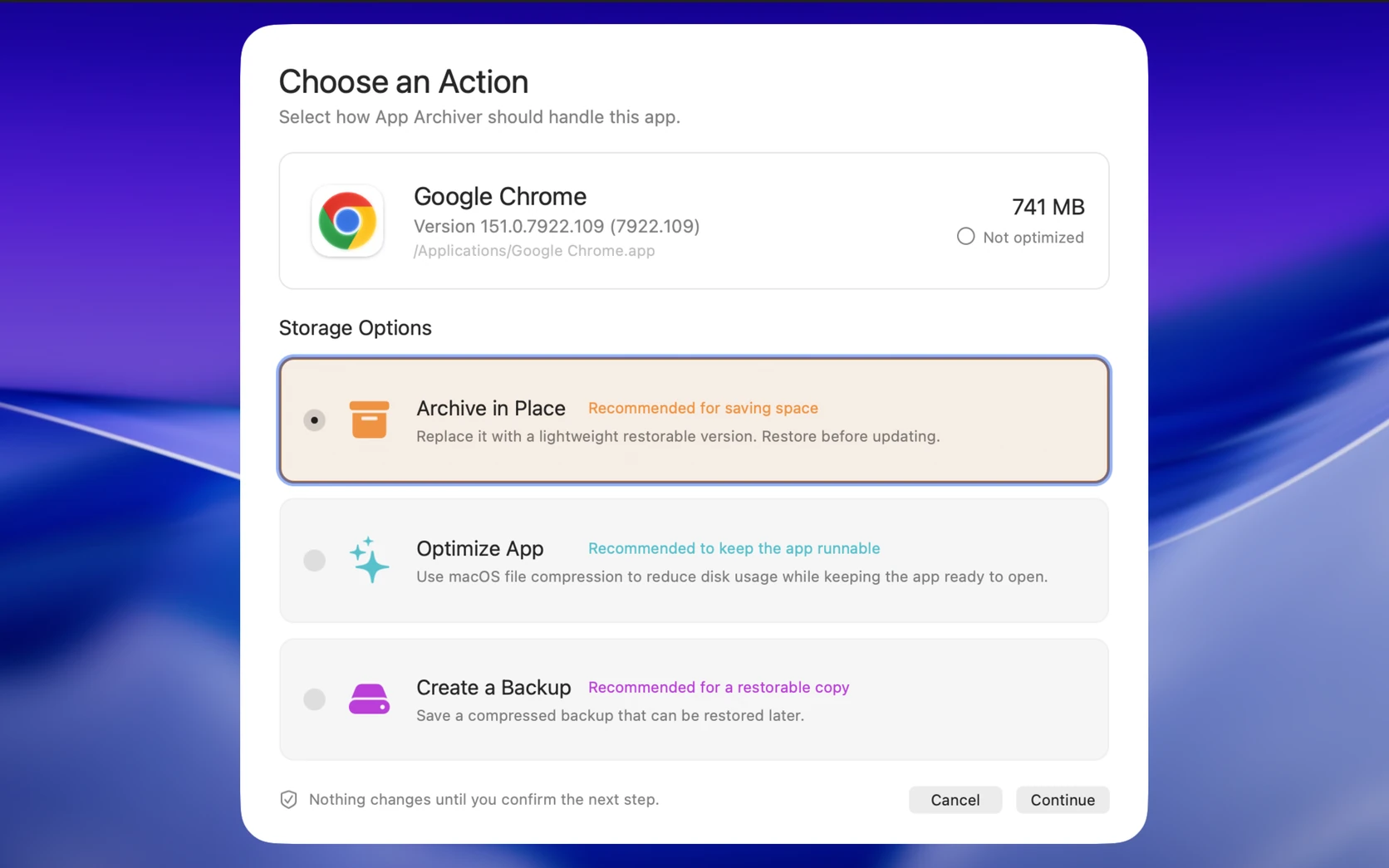
Put rarely used apps aside without forgetting them
Some apps are useful only occasionally. I want to keep them, but I do not need them ready to run every day.
For these, Archive in Place can save more space. It packs the app away while keeping its familiar icon in the same place. You can still see it in Applications and find it through Spotlight, your Mac's built-in search.
That visibility matters to me. If I put an app into an archive somewhere else, I can forget I have it. Keeping it searchable means I can find it when I need it again.
An archived app needs to be restored before it can run or update. Double-click its icon to start restoring it through App Archiver. Once restoration finishes, you can use the app again. You can also restore it from the Archived Apps list.
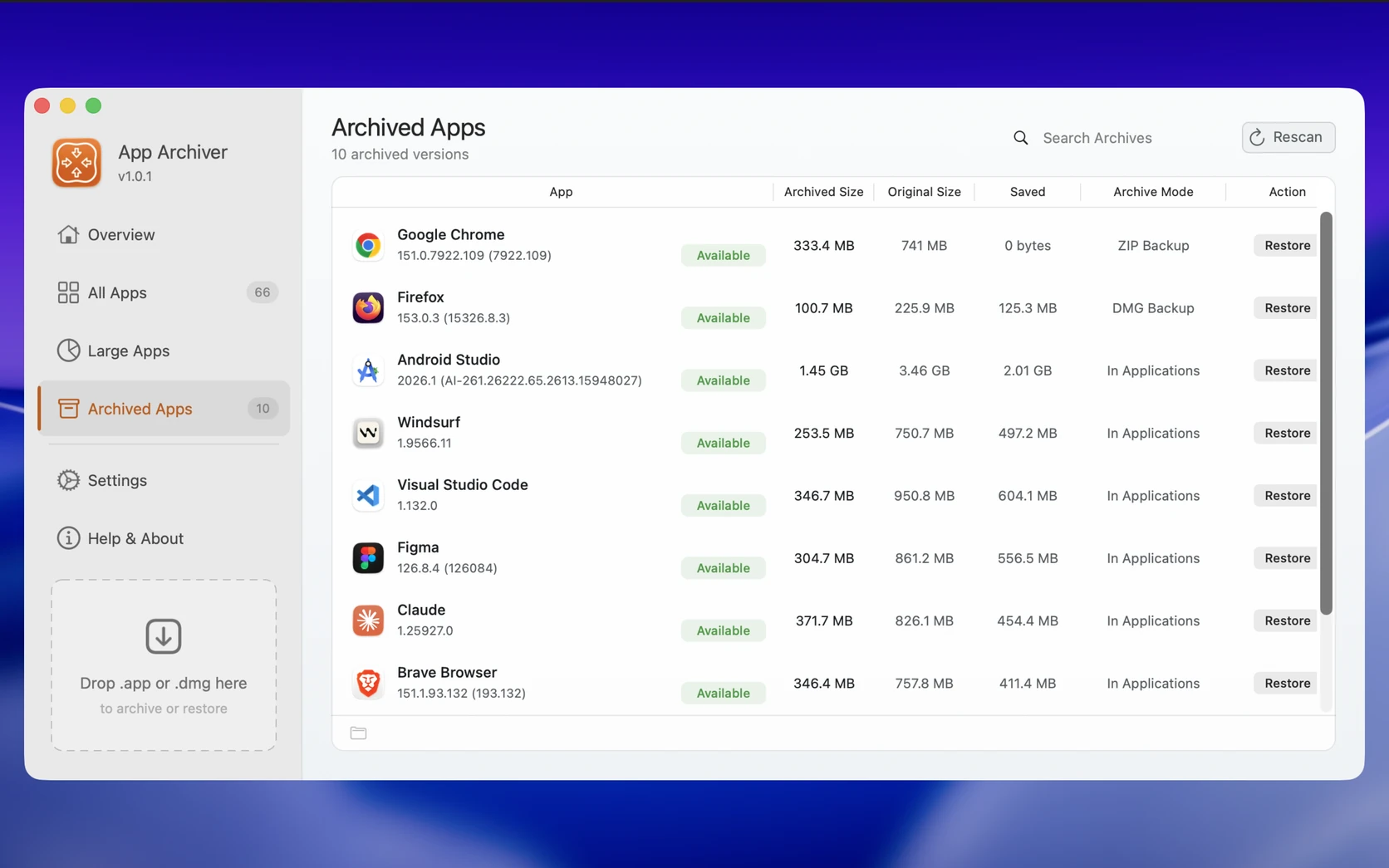
App Archiver can also save a separate backup in ZIP or DMG format, for example on an external drive. Creating a backup by itself does not make the installed app take up less space.
I wrote more about it in the story behind App Archiver.
Choose the method that fits what you keep
| What you want to keep | Method | What to expect |
|---|---|---|
| Ordinary files that you still open | File compression in DiskPress | Supported files remain accessible at their existing paths. Files that are already compressed may offer little additional saving. |
| Identical files needed in separate folders | File deduplication in DiskPress | Supported copies can share storage on the same compatible volume. Their paths remain separate, and later edits can increase the space used. |
| An application you use regularly | Optimize App in App Archiver | The app stays installed and runnable. An update can replace compressed files and reduce the saving. |
| An application you rarely use | Archive in Place in App Archiver | The app stays visible, but must be restored before it can run or update. |
| A separate copy to keep elsewhere | ZIP or DMG backup in App Archiver | Creating the backup leaves the installed app in place. The backup needs storage of its own. |
Keeping files available, keeping an app runnable, and keeping a restorable archive are different goals. Choose the one that matches how soon you need the data or software again.
How to evaluate the result on your Mac
Start with a small selection you understand and keep a current backup. The useful question is how much storage you recover while preserving the workflow you need.
- Record the macOS and app versions, the disk's filesystem, and what the selection contains. Keep files and applications in separate tests so their results are easy to interpret.
- Record the selection's reported size and the disk's available space before processing. In App Archiver, review the estimate before choosing an operation.
- Run one operation and record its reported saving and elapsed time. Avoid changing the selection or running other large file operations during the comparison.
- Open representative files afterward. For an optimized app, check the tasks you normally use it for. For an archived app, include the time and free space needed to restore it in your decision.
- Compare the result with the original selection. Note any files the app skipped and any updates or edits that happened during the test. Those details matter when comparing results with someone else's Mac.
A file's content size and the space allocated to store it are different measurements. The content size can stay the same after compression. Copies that already share storage may have less room for further savings, and other disk activity can affect a before-and-after free-space comparison. Report the measurement you used alongside any saving rather than treating every size shown by macOS as interchangeable.
Already compressed files may save very little, and frequently edited files can need repeated work. For archived apps, the tradeoff includes waiting for restoration and having enough space to restore the full app. A smaller stored copy is useful only if these tradeoffs fit how you use it.
Two apps for more room on your Mac
Get both apps together at a discount with Storage Saver Duo on the Mac App Store. DiskPress handles your files, and App Archiver handles your apps.
Both apps are available on the Mac App Store and fully sandboxed for added security and privacy. Sandboxing means macOS limits what each app can access. Their permissions block both incoming and outgoing network connections, including all connections to the internet and your local network.
Both work on your Mac without uploading your files. You do not need an account, and you choose what gets processed.
How much room you gain depends on what you keep and how your drive stores it. Some files and apps are already stored efficiently, so they may shrink very little. Your Mac's free-space display can also take time to catch up.
After months of work, I'm happy that using these apps feels straightforward. My files stay accessible, the apps I use stay ready to open, and the ones I put aside stay easy to find. I can make more room without deciding which useful things to give up.