The macOS Dock Nightmare: How I Finally Stopped It from Jumping Between Screens
A DockLock story about the long-running macOS Dock jumping problem, the first fixes in DockLock Lite and Plus, and the DockLock Pro direction.
Originally published by Ighor July on Medium on . Republished here by the author on .
Last updated
DockLock Lite and DockLock Plus are released. DockLock Pro is still in development. This is the story of why I built them and what each version is intended to do.
For years, I put up with one of macOS's strangest and most frustrating annoyances. The Dock kept moving between screens when I least expected it. If you use multiple monitors, you've probably experienced this yourself. One moment, the Dock is where you want it, and the next, it has jumped to a different display, forcing you to interrupt your workflow to fix it.
At first, I thought I was missing a setting. Surely, there must be an option to lock the Dock in place? But after diving into macOS settings, I found no solution.
I turned to the internet, searching through forums, Reddit threads, and Stack Exchange questions dating back more than a decade. Other users described the same frustration.
One of the earliest public reports dates back to October 2013 on Apple Support Communities, where users described the Dock randomly relocating during normal use and after sleep or Space changes. https://discussions.apple.com/thread/5483780
"I'm running Mac Mini M1 on a dual monitor set up and every now and then (I don't know even how it happens or why), the dock switches from one monitor to the other. It annoys me so much." (Reddit)
"how can we stop it? Some terminal command or even paid software?" (Ask Different)
Users tried everything:
- Altering system settings — Unchecking “Displays have separate Spaces” sometimes helped, but it broke other macOS features.
- Changing Dock position — Moving it to the left or right side prevented jumping, but that’s not where many people want their Dock.
None of these were real solutions. Apple ignored the issue for years. So, I decided to fix it myself.
Creating a Real Fix: DockLock Lite
Instead of relying on system hacks or risky modifications, I built DockLock Lite, a lightweight app that prevents accidental Dock movement. It runs in the background, ensuring the Dock stays exactly where you want it — without breaking macOS features or requiring deep system changes.
DockLock Lite features:
- Choose which displays allow Dock movement
- Hold a key to temporarily unlock Dock movement
- Move the Dock to the selected display by using the tray menu
- Hide Dock & menu icons for a clean experience
- Support for Dock in auto-hide mode
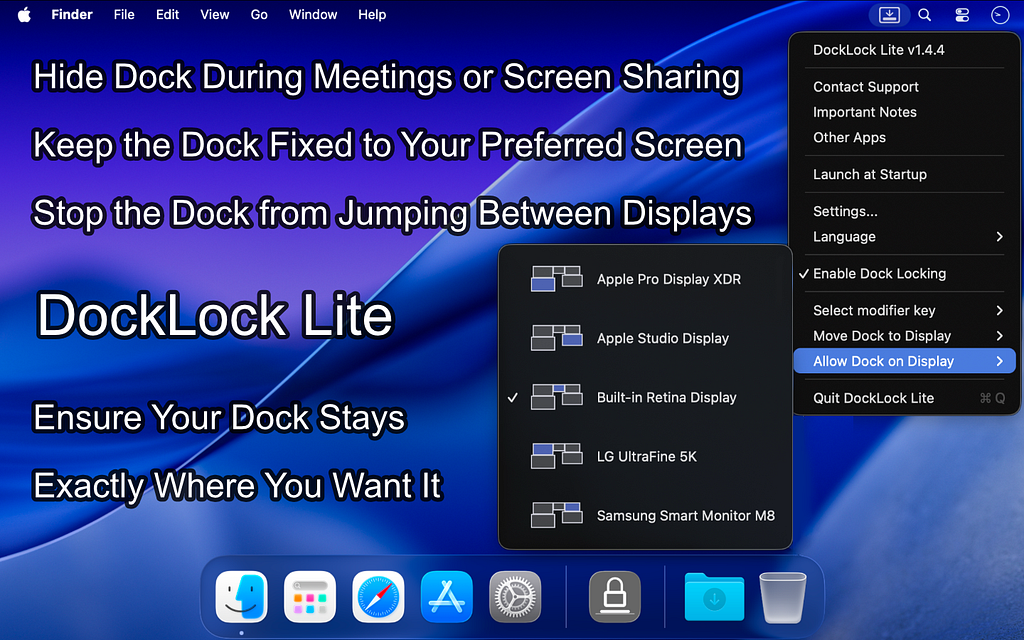
The reception has been amazing. Many users have told me DockLock Lite has finally fixed an issue they’ve been struggling with for years.
DockLock Plus
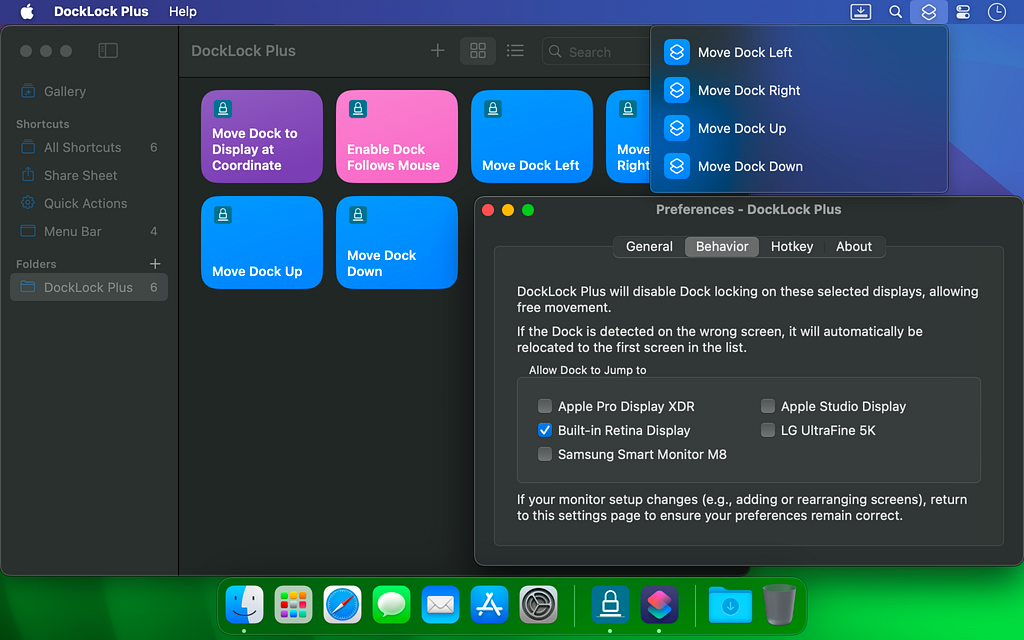
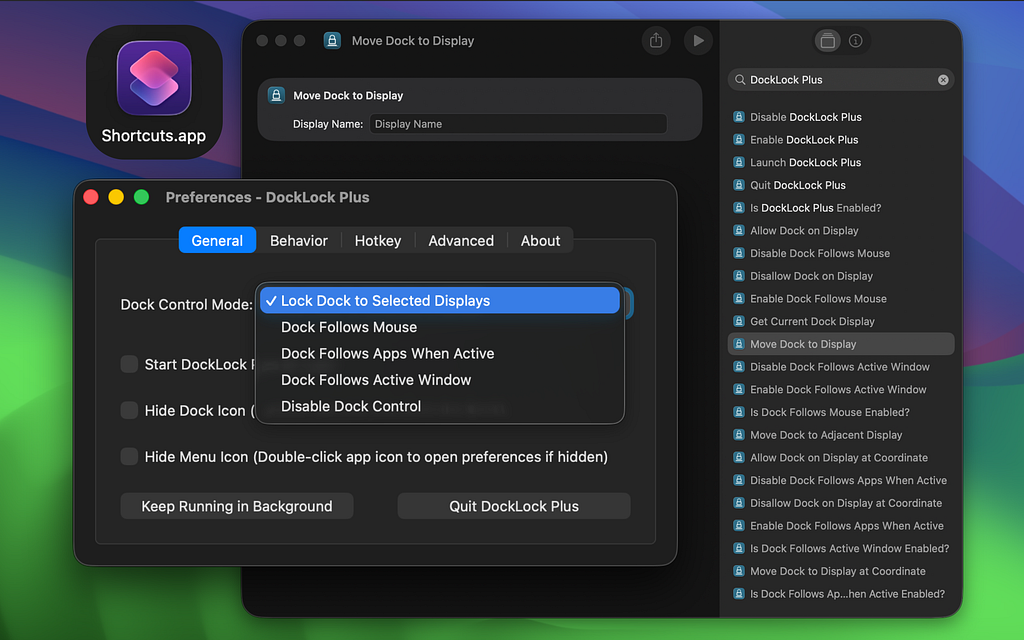
Later I released DockLock Plus, which is a lifetime, one-time-purchase version built for users who need more than just locking. It introduces automation features like Dock follows mouse, Apple Shortcuts and URL Scheme support, and menu actions to instantly move the Dock to specific displays. These tools open the door to integration with third-party apps and workflows, making DockLock Plus ideal for power users who want precise, scriptable control over their Dock.
What DockLock Solves Today
Support has now been added for macOS 10.9, which means the Dock jumping issue can now be fully mitigated on every macOS version where it has existed. DockLock Lite core functionality is now free after the trial period ends, made possible by users who supported the project by purchasing a license. Recent updates focus on reliability and transparency. The app now detects incompatible display setups or relocation conflicts and explains to the user what is happening and how to resolve it. DockLock Lite also includes a tray menu option that allows the Dock to be intentionally moved to a selected display instead of relying on edge detection.
What’s Next: DockLock Pro
After launching DockLock Lite and DockLock Plus, I realized that locking the Dock was just the beginning. Some users don’t just want to prevent Dock movement — they want full control over where and when the Dock appears. That’s why I’m working on DockLock Pro — a completely new version that removes the limitations of the App Store and pushes the boundaries of what’s possible on macOS.
With DockLock Pro, you’ll be able to place the Dock on any edge of any screen, including vertical positions and center displays. It introduces behavior macOS never allowed before, like aligning a bottom Dock to the left or right half of the screen, and relocating vertical Docks to external monitors. This level of control has never existed in macOS, and it’s only possible now thanks to a technique I developed through reverse engineering.
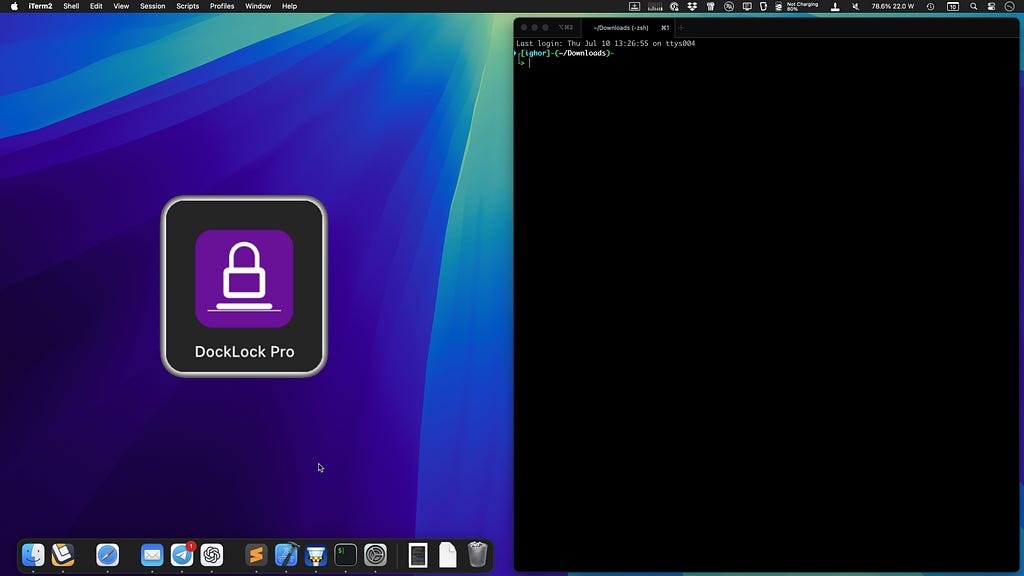
DockLock Pro is built for power users who want to unlock the full potential of the Dock. If you’d like to see the prototype in action, check out the video preview https://docklockpro.com/docks/prototype/
By purchasing DockLock Plus or subscribing to DockLock Lite, you’re directly funding the development of DockLock Pro. Every sale helps cover the time, research, and reverse engineering needed to build this next-level tool-one that completely unlocks the Dock beyond what macOS ever allowed. If you’re excited about DockLock Pro, know that your support through Plus or Lite is what makes it possible. DockLock Plus and DockLock Lite buyers will get a discount when upgrading.
If you've been frustrated by the Dock moving between screens, DockLock Lite and DockLock Plus are available on the Mac App Store. Lite focuses on keeping the Dock in place, while Plus adds automation and a one-time purchase option. DockLock Pro is still on the way.
Compare the released versions and follow DockLock Pro development on the official DockLock website.
If you've dealt with the Dock jumping between screens, send me your experience. I would like to hear which solutions have worked for you.