My Mac Apps Story, Part 1 - My First Mac and the App I Still Use Today
The first part of my Mac apps story, starting with my 2008 MacBook, my early switch from Windows to Mac OS X, and why I still use coconutBattery today.
Last updated
I am writing a small series about my Mac journey since 2008, the apps I discovered along the way, and the apps I later created because I felt something was missing in macOS.
By the time this series is complete, I want it to become a practical collection of Mac apps that I personally consider must-have. Some of them are tools I discovered more than a decade ago and still use today. Others are apps I created for myself because macOS was missing something I wanted to have.
This will not be just a list of app names. I want to explain how I found each app, why it stayed with me, what problems it solved, and what my long-term experience with it looks like after years of real use.
Before Mac
My Mac story started near the end of 2008.
At that time I was a student, but I already had many ideas and was working on some relatively large software projects. I learned Qt and C++, which gave me the ability to create cross-platform apps.
Before Mac, I was a big Windows fan. I had used Windows since Windows 2000, and I had my own small computer repair service focused on software. Because of that, I spent a lot of time digging inside Windows, fixing things, changing settings, and learning how the OS worked.
That gave me huge respect for Microsoft. Windows was flexible, powerful, and feature-rich. I felt like I could modify almost anything the way I needed. I had my own PC back then, and by the way, it is still alive.
My First MacBook
Then in 2008 my mother gave me a gift. She bought me a brand new MacBook 13-inch Late 2008 from the Apple Store. That is how my Mac story began.
The first thing that surprised me was how many small hardware details felt unusual compared to Windows laptops of that time. On the very first lid open, without pressing any power button, it started to boot and played the startup chime. That small detail made me smile.
The MacBook itself looked almost perfect to me. On the bottom, there was a latch that opened access to the hard drive compartment. It felt extremely convenient. I also added more RAM, and I remember how easy that was compared to many Windows laptops I had opened before.
With many Windows laptops, disassembling anything was a red flag unless I checked everything carefully with a flashlight first. There were often hidden clips, fragile cables, and parts that had to be removed in a very specific order. With that MacBook, it felt much harder to break something by accident. A few screws, the back came off, and the design made sense.
On the side, there was also a battery indicator button, so I could check the battery level without even opening the MacBook. New Macs do not have that anymore.
The MagSafe charging connector was also great. Unlike later thinner versions, this one felt thick and solid, so it held the cable more firmly. I also liked that it could be connected in either direction, so I did not have to think about which side was up. I could move or slightly bend the charging cable without accidentally disconnecting it all the time.
It also had an IR receiver, so the MacBook could be controlled with a remote. I honestly never found much practical use for it, but I still liked that it was there. It made the MacBook feel like it had more thoughtful little possibilities built into it.
Another detail that immediately felt different was the slot-loading DVD drive.
On most Windows laptops I had seen, the optical drive was a flimsy tray that slid out from the side and never felt especially solid. The MacBook had no tray at all. There was only a narrow slot with a soft lining that kept the opening closed and helped prevent dust from getting inside.
Inserting a disc was an unusual experience. At first, it felt as though the disc had become stuck inside the slot. Then the mechanism suddenly caught it and pulled it the rest of the way in.
Compared with the loose DVD trays on other laptops, this felt clean, mechanical, and almost futuristic.
The Apple logo on the lid also glowed. That felt unusual to me, and I liked the look of it, but I also remember wishing there was a way to turn it off at night. Its brightness depended on the screen brightness, but when I used the MacBook in a dark room, it still lit the room a little. Sometimes I had to cover it just to feel comfortable, which was a bit annoying.
Another thing that impressed me was the accelerometer. It was available to apps, and I remember running an aquarium screensaver where the water moved realistically when I tilted the MacBook. Seeing that on a laptop screen felt unusual and fun.
But the accelerometer was not there just for fun. Its real purpose was to detect a fall and park the hard drive before impact. That was another small but smart detail I had not seen in Windows laptops I used at that time.
Leopard, Boot Camp, and Trying to Switch
The OS was Mac OS X 10.5 Leopard. I still have the original disc.
Visually, I liked Mac OS X right away. But actually using it was painful for me at first. A big part of that was window management.
I was used to Windows, where I could easily maximize a window and use all available screen space. On Mac OS X, I did not understand why resizing a window to fill the usable screen area was not as direct. It felt like the system wanted me to keep parts of the desktop visible, but I never cared about that. Even on Windows, I almost never saw my desktop wallpaper because my windows usually covered everything. So the problem was not only that Mac OS X was unfamiliar. It also worked against the way I had trained myself to use a computer.
At that time I was still developing software for Windows, so I installed Windows XP through Boot Camp. My plan was simple. I would mostly stay on Windows and sometimes boot into Mac OS X until I got used to it.
But Boot Camp had its own surprises. The Windows drivers were not working as well as Mac OS X. By February 2009, I was still trying to make Windows XP feel usable on that MacBook, especially the keyboard. Some hotkeys and Fn keys did not work properly, and many regular Windows key-remapping apps could not catch those keys at all.
That is when I found an app called InputRemapper. It helped fix some of those keyboard problems and made it possible to rebind parts of the MacBook keyboard into something more useful under Windows. It was one of those small utility apps that existed because the default experience was not good enough.
Trackpad support was also disappointing. There was no proper multitouch support, and two-finger click generated a click and release immediately. That made the context menu annoying to use, and it also made some things impossible. For example, in games where the right mouse button had to be held for zoom or aiming, it instantly released instead of staying pressed.
That was not the only issue. The keyboard backlight level also kept resetting. At that point I thought, okay, maybe Apple's strategy was working. Mac OS X clearly had the better trackpad experience, and that kept pulling me back.
The Trackpad Started Pulling Me In
And honestly, the trackpad experience in Mac OS X did start pulling me in. The gestures felt natural. Scrolling webpages with fingers was really smooth. It did not just jump a few lines like many Windows laptops did at that time. Every small finger movement moved the page exactly like touching a screen on a smartphone.
That made me realize Apple had really thought through the trackpad experience. I did not expect that this kind of convenience would become one of the things pulling me toward Mac OS X, but it did.
For about half a year, I kept switching between Mac OS X and Windows. I would try to stay in Mac OS X, then return to Windows because it felt more familiar.
Eventually I decided that instead of fighting Mac OS X, I should try to change it and configure it in a way that would feel comfortable for me.
Finding My Way Around Finder
I went through every setting I could find in Finder, Dock, and System Preferences.
In Finder, I found the option to show folder sizes. That felt very useful, because on Windows I needed third-party apps for that. I could sort folders by size and quickly find what was using too much disk space.
I also noticed Finder's column view. It allowed me to select files and folders across different levels, which was practically impossible in Windows Explorer.
I also found the option to show the folder path at the bottom of Finder. Much later, I discovered that right-clicking a folder name in that path bar allowed copying its full path to the clipboard, which was useful for Terminal.
The First Mac App I Still Use Today
Another thing I wanted was better battery information. On my Windows laptop, I used an app called BatteryLife, which helped me understand what was really happening with the battery and how to extend its life.
For Mac OS X, I found coconutBattery. I liked it immediately because it was simple and showed exactly what I wanted to know. At that time, I remember it being free.
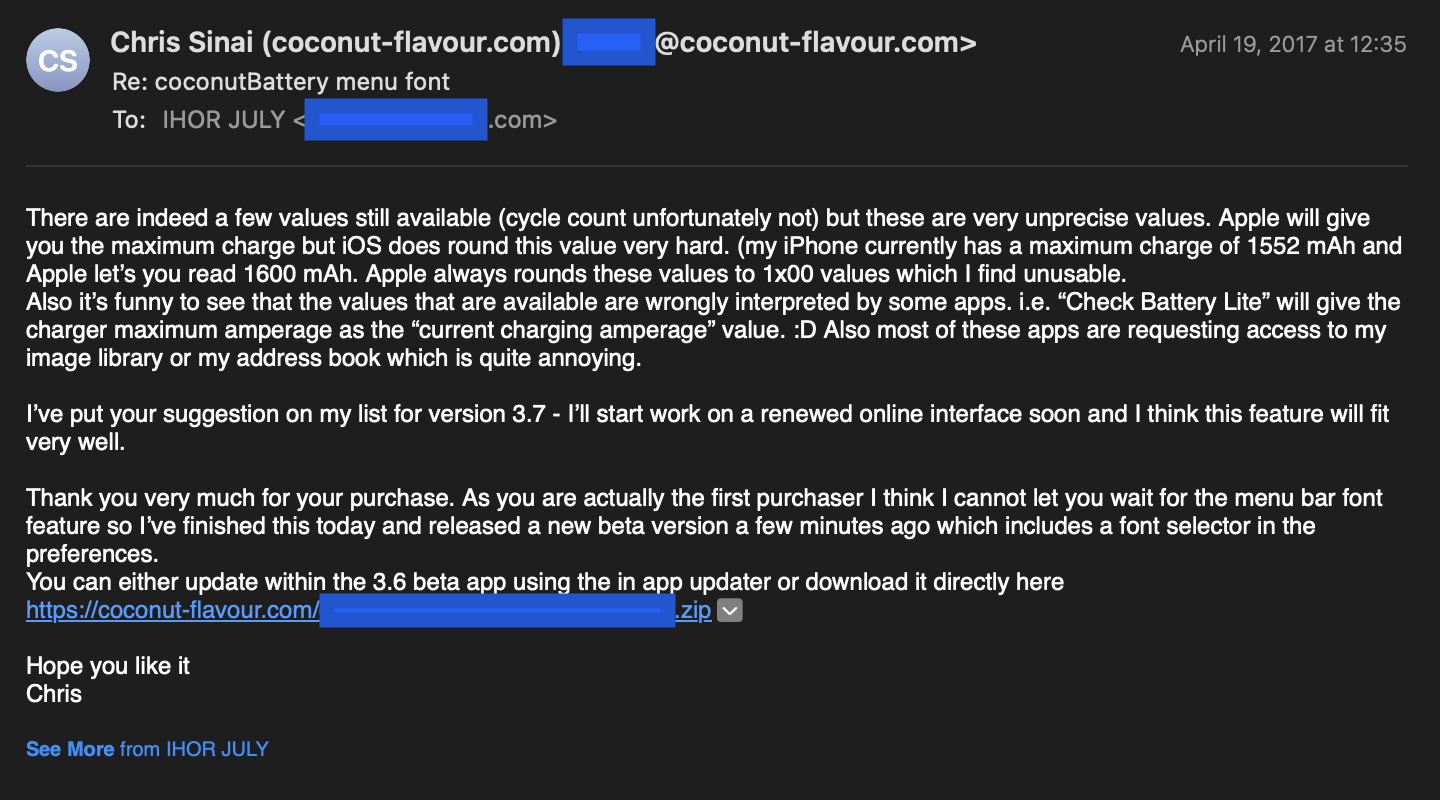
Years later, when the developer added a paid Plus version, I bought it right away. I also wrote to him and asked if he could make the menu bar font larger.
He replied that I was actually the first purchaser, so he could not let me wait for the menu bar font feature. He had already finished a beta version that included a font selector in the preferences.
That felt great. I was happy that I supported the developer, and also happy that my feedback helped improve an app I liked.
I have always had huge respect for developers who actually listen to feedback from people who use their apps and then improve the app because of it. That email stayed in my memory for exactly that reason.
As a developer myself, I try to do the same thing. When users report problems, suggest improvements, or explain what makes an app uncomfortable to use, I try to treat that feedback seriously.
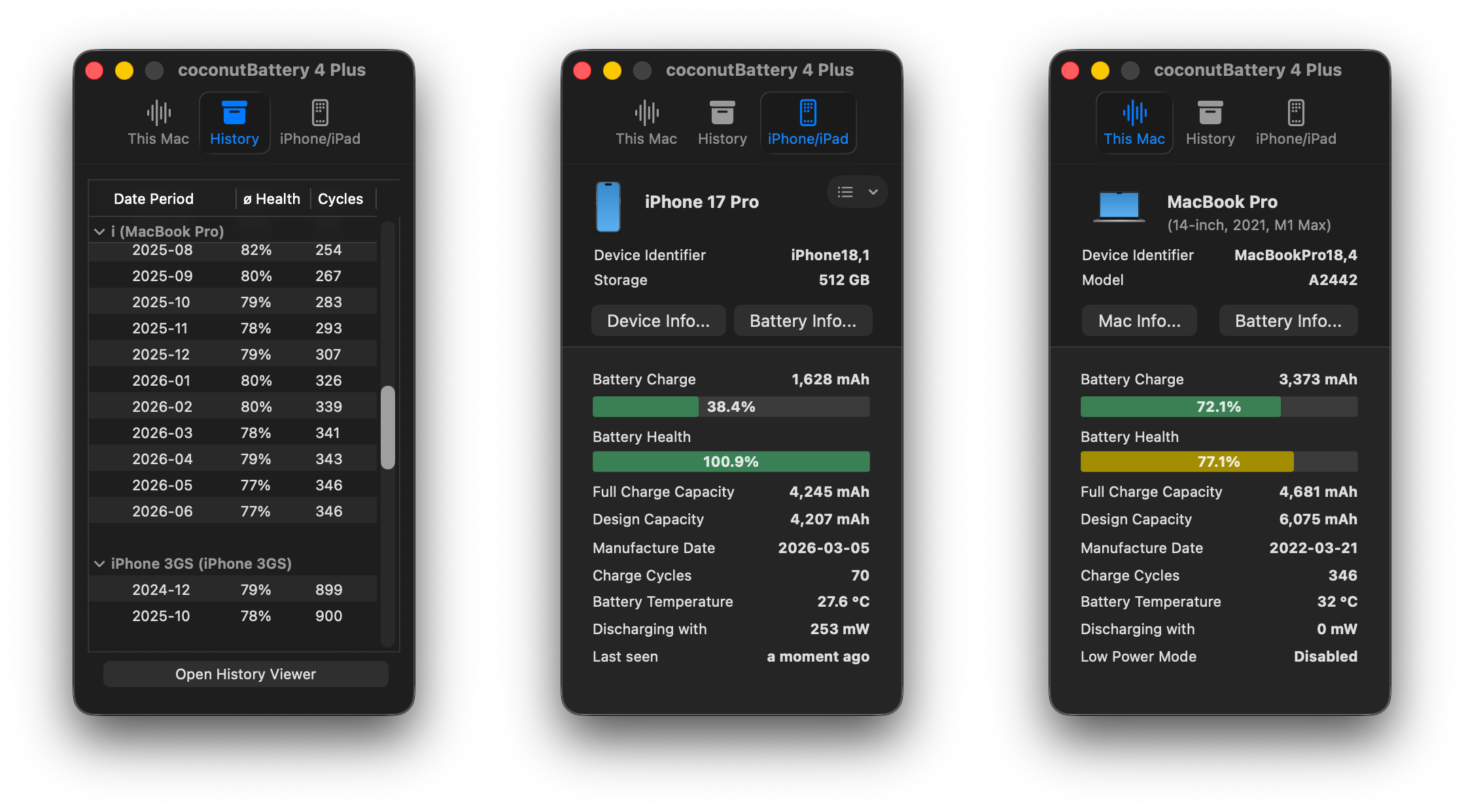
Today, coconutBattery is much more than the simple battery window I first used. It does not just show the current battery state of my MacBook. It can also keep battery history in its own database, so I can see how battery health changed over time.
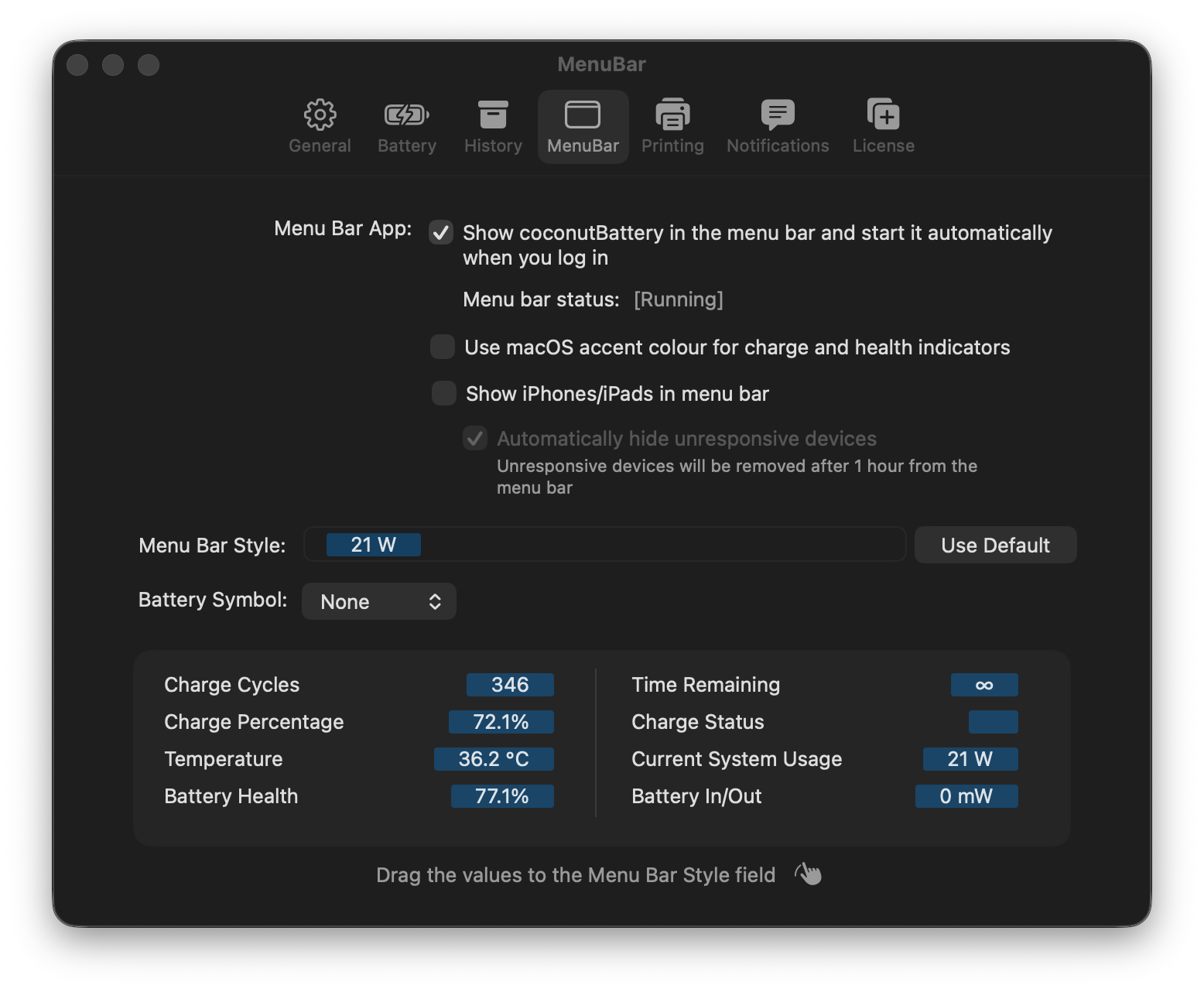
I also like how flexible the app settings became over time. The menu bar app can always show selected battery information, so I can choose what I want to see at a glance, such as battery health, charge cycles, temperature, or current system usage. That turns coconutBattery into something I can keep visible all the time, not only an app I open when I remember to check the battery.
It also works with iPhone and iPad. After Wi-Fi connection is enabled, it can collect battery information from those devices too. I especially like the history view, because it gives me a table of monthly battery health and cycle count stats. That makes battery degradation much easier to understand than just checking one number once in a while.
Over time, coconutBattery became a small archive of my Apple devices. Inside it, I have battery history from devices I no longer use, and I keep that data partly because it is useful and partly because it keeps memories of those devices.
I also used coconutBattery to check old iPhones. Recently, I connected an iPhone 3GS, and it still displayed battery information. That helped me check whether the battery looked original based on the details the device exposed. I like that a modern version of the same app can still give useful information about hardware from so many years ago.
I still use coconutBattery today, all these years later. The developer still actively maintains it. I recommend it to everyone because it helps you understand whether your battery is degrading normally or too fast.
Almost Staying on Mac
After about half a year of trying to switch to Mac OS X, I finally started to like it. I spent more and more time there. Then Qt Creator was released, and I could write C++ Qt apps more comfortably on Mac OS X. For the first time, it felt like I might actually stay on Mac.
But then one day I left my MacBook in the car for a few hours. When I came back, someone had broken into the car and stolen the bag with my MacBook and Dell X51v inside.
Just like that, I had no Mac anymore and could no longer use Mac OS X. I did not have money to buy another Mac at that time, so I had to return to my Windows PC.
Not the End of the Story
I was stuck on Windows again for a while. But my Mac story did not end that way. In many ways, it had only just started.
If this kind of long-term app review is useful, I will continue the series next week, around the same time.
I am also thinking about writing similar series later, like "My iPhone Story" and "My PC Story". Would you be interested in reading those too, or should I keep this focused only on Mac apps for now?