How I Finally Started Using a Calendar
Calendars and notes never became habits for me. Then one small Mac app found a place in my life, and years later I began to worry about losing it.
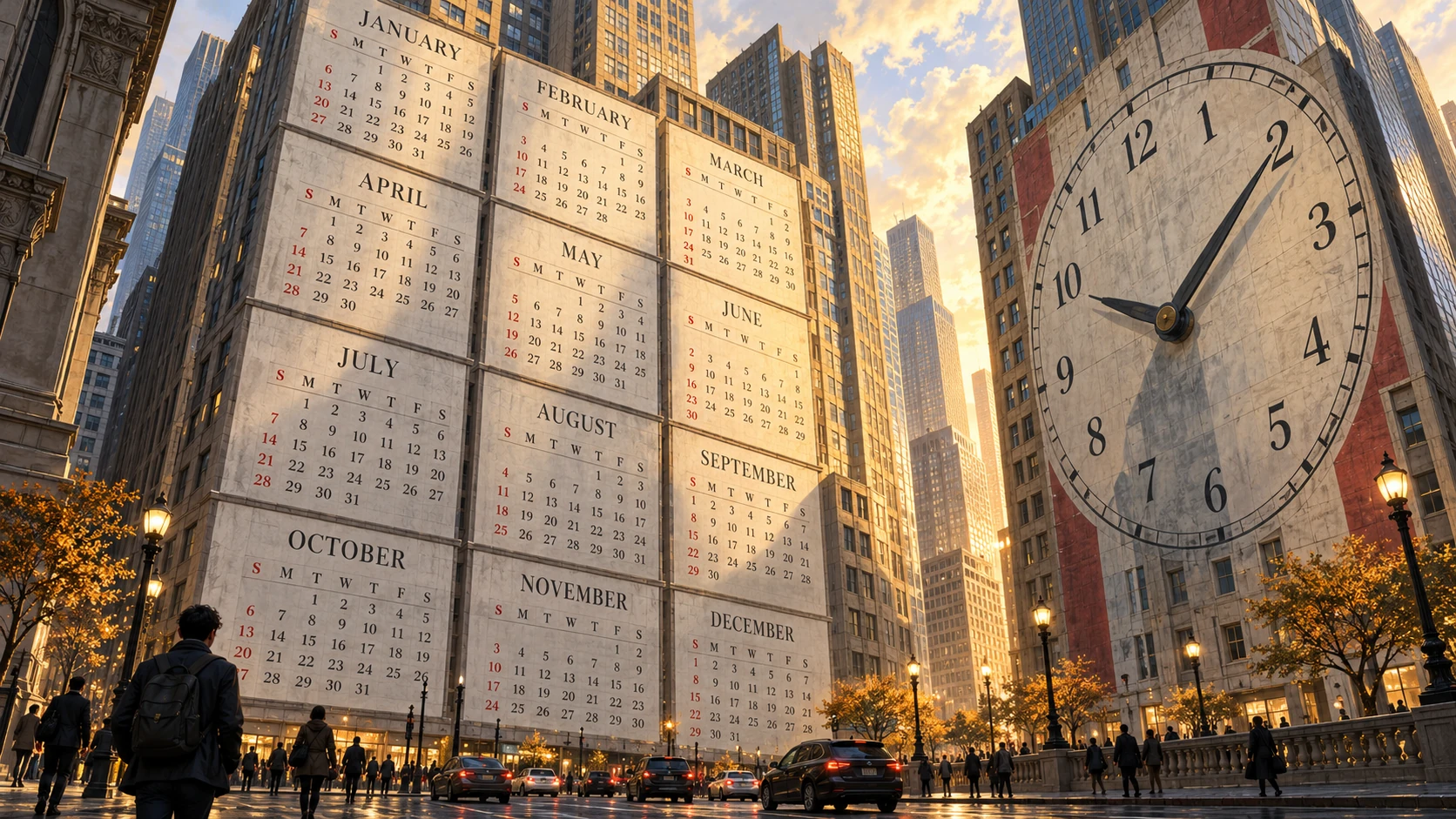
For years, I wanted to become the kind of person who plans their life. I would try using a calendar or keeping notes, hoping that this time I would get used to it. Somehow, I always ended up living without either.
I still needed to understand dates. How many weeks were left before something happened? How far apart were two plans? Where did the next few months fit into the rest of the year? Those questions mattered to me even when I had no calendar habit at all.
Eventually, one small Mac app became part of my everyday life. I kept using it for years, including long after its developer had stopped working on it. That seemed perfectly fine until keeping it became a problem I could no longer ignore.
One click to see the year
Coming from Windows, I was used to clicking the clock in the system tray to see a calendar. On the Mac, clicking the date and time in the menu bar opens Notification Center.
Notification Center can hold calendar widgets, but Apple's built-in options show the current month or upcoming events, without a full-year view. That ruled them out for me. I wanted all twelve months visible at once, large enough to read comfortably and reachable with a single click in the menu bar.
A full-year view in a regular app window was not an option for me either. I wanted one click to bring up the calendar and another click outside it to get back to what I was doing. I did not want to search for a close button and carefully aim at it every time I checked a date.
The original popCalendar gave me that combination. It lived in the menu bar, showed the whole year with one click, and disappeared when I clicked outside it.
That sounds like a small thing. For me, it made an enormous difference.
With all twelve months in front of me, I could immediately picture my timeline. I could move the pointer across dates, count weeks, and understand how much space there was between one thing and another. A date several months away had a visible place relative to today.
I do not know whether everyone thinks about time this way. I know that once I got used to it, other calendars felt difficult to use. A month at a time was never quite enough. I wanted to see what came before it and after it without switching views and trying to keep the previous screen in my head.
popCalendar was simple, always running, and reliable. It became the calendar I actually used.
The app disappeared before it stopped working
One day, I noticed that popCalendar was gone from the Mac App Store.
I worried that I might lose access to it, so I contacted the developer. Unfortunately, he told me that he had quit Mac development and removed his app from the store. He sent me a link to the latest build. That was in 2019. I later shared our conversation in My Mac Apps Story, Part 2.
I kept using it. An abandoned app can remain useful for a surprisingly long time, and popCalendar continued doing exactly what I needed. Nothing about my daily experience suggested that it needed replacing.
But the original app is Intel-only. On an Apple silicon Mac, it depends on Rosetta to run. Apple says Rosetta will remain available for ordinary Intel apps through macOS 27. Starting with macOS 28, its remaining support will be limited to certain older games. That leaves an abandoned Intel calendar without a path forward on an Apple silicon Mac running the new system.
I could still open popCalendar, but it had started to feel like an app I was going to lose. Eventually, keeping my Mac up to date would mean leaving it behind.
I was not the only one who missed it
Over the years, I tried alternatives. My main requirement seemed simple enough. I wanted a calendar in the menu bar that could show an entire year.
There are so many calendar apps for Mac, yet I kept struggling to find one that felt right for this particular use. I still wonder why a full year is such an uncommon view in menu bar calendars. For me, it is the reason to open one.
In My Mac Apps Story, Part 2, I mentioned popCalendar among the apps that had disappeared. Afterward, some readers contacted me to say that they had loved it too. They also expected to miss it when it stopped working.
Those messages stayed with me. I already wanted to preserve this part of my own workflow, and now I knew that other people cared about it for the same reason.
So I decided to build a new app inspired by the original popCalendar. The old app had been removed, and its name was available again. I chose to keep it.
That is how my own popCalendar began.
First, make it feel familiar
My initial goal was modest. A click on the menu bar icon would show the whole year, and a click outside the calendar would dismiss it.
Once I had that working, it felt familiar. I had the view I wanted, in the place where I expected to find it. I could keep using a calendar in the way that had finally become natural to me.
But I am the kind of person who gets new ideas while implementing the previous ones. popCalendar was no exception. Using my own version made me notice the little things I had been doing manually for years.
The first was counting.
Let the calendar do the counting
I used to move the pointer over dates and count days or weeks in my head. It helped me see the distance, but I was still doing the arithmetic myself.
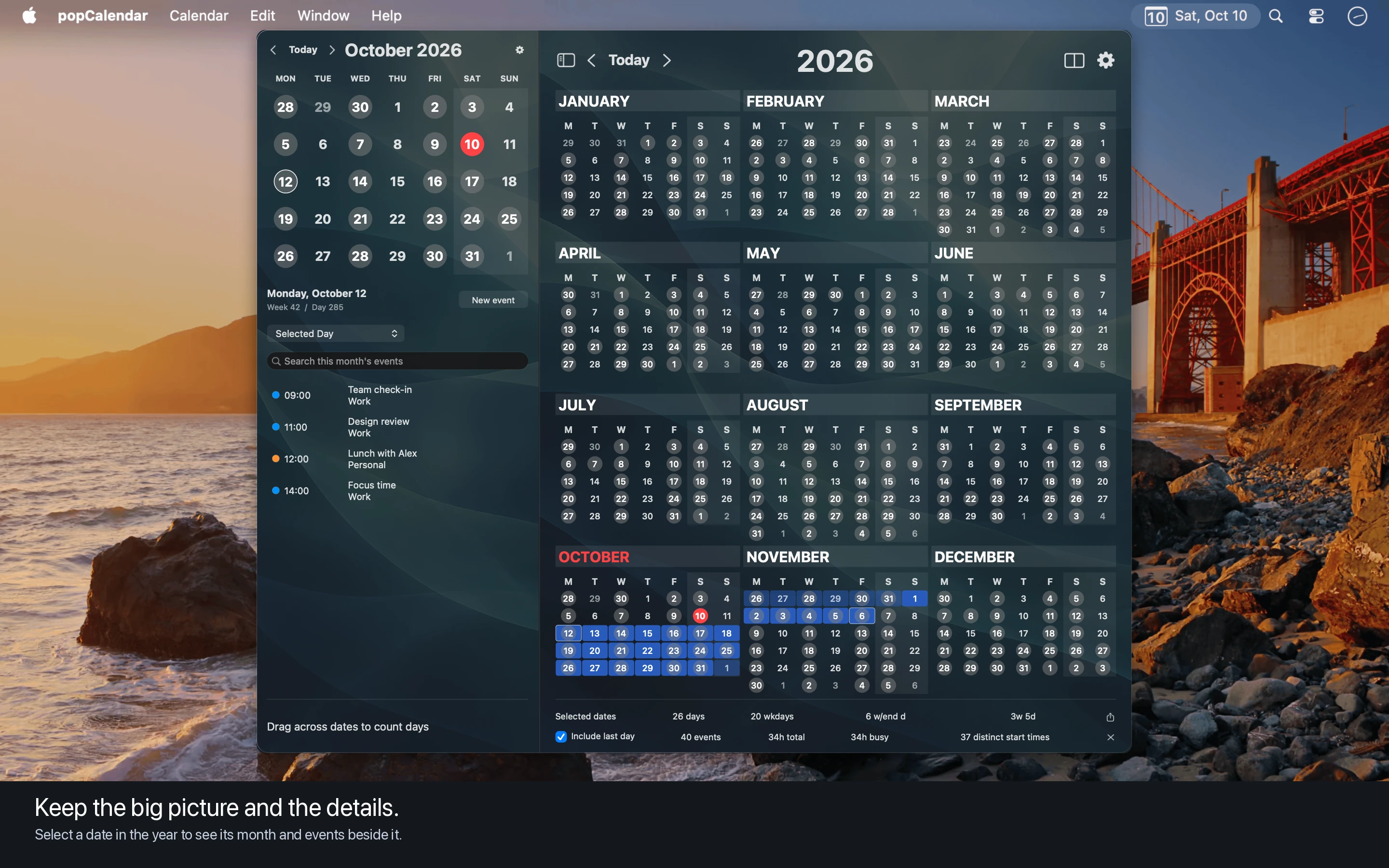
So I made date ranges selectable. Click a date, drag to another date, and popCalendar calculates the range. I can see the days, weeks, and months, along with working days and weekends. The shape of the selection gives me the visual understanding I like, and the numbers are already there.
That immediately felt useful. Then I reached December.
A year view has an obvious edge. If I wanted to measure the time from December 15 to January 15, the second half of the range belonged to a different screen. My plans continued into January, but my view ended in December.
The answer was to put two years side by side.
Now I could see both ends of the range and select dates across the year boundary. I could also choose which years to display and compare them. Something that had always required a little mental juggling became visible all at once.
A different size for each display
I use multiple displays, and the size that feels right on one screen is not necessarily right on another.
I made the calendar panel resizable, with its size remembered separately for each display. I can keep it compact where space is limited or make it much larger on a bigger screen. The calendar scales with it, so the extra space becomes useful instead of leaving a small calendar floating inside a large panel.
That also gave me more room to experiment with how the calendar looked.
What if there were a clock behind it
I had wondered what it would look like to put a huge clock behind the calendar. Once I tried it, I liked it enough to keep going.
One clock became several, then a collection of analog, digital, and hybrid designs. I added ways to change their appearance so the clock could feel like part of the calendar I wanted to look at every day.
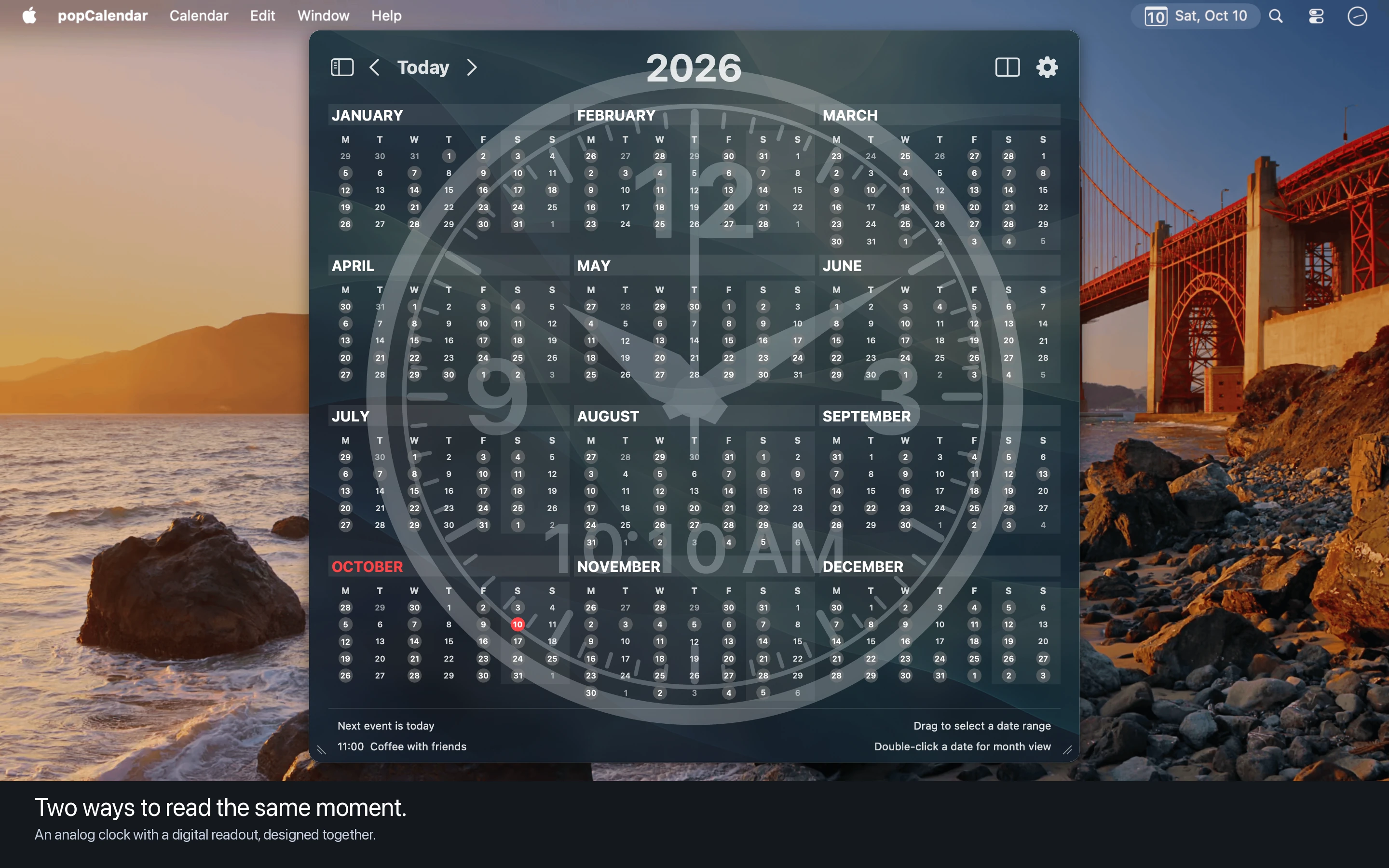
Then came custom backgrounds. I could put an image behind the calendar, choose a photo I liked, or use random images from a folder. A calendar I opened throughout the day could show something personal instead of always looking the same.
These were optional additions to the experience I already enjoyed. The simple year view was still there whenever that was all I wanted.
The ideas I would not have found on my own
When I was ready to share the app, I invited testers from AppRaven. They sent me feedback about things I rarely needed myself, but that made complete sense once someone explained how they wanted to use the calendar.
I added saved calendar sets and more settings for the existing features. Being able to switch between chosen groups of calendars was useful to people whose schedules were organized differently from mine.
One question was especially interesting. How could someone keep their events visible while looking at the whole year? They did not want to click the current day every time just to see what was happening.
That gave me the idea of adding a month sidebar beside the year view, with events beneath the month.
Putting a month next to a whole year sounds a little strange when described in words. On the screen, it makes sense. The year gives me the longer view, while the sidebar keeps the nearby dates and events readable. Clicking a date in the year lets me see that day's events beside the overview.
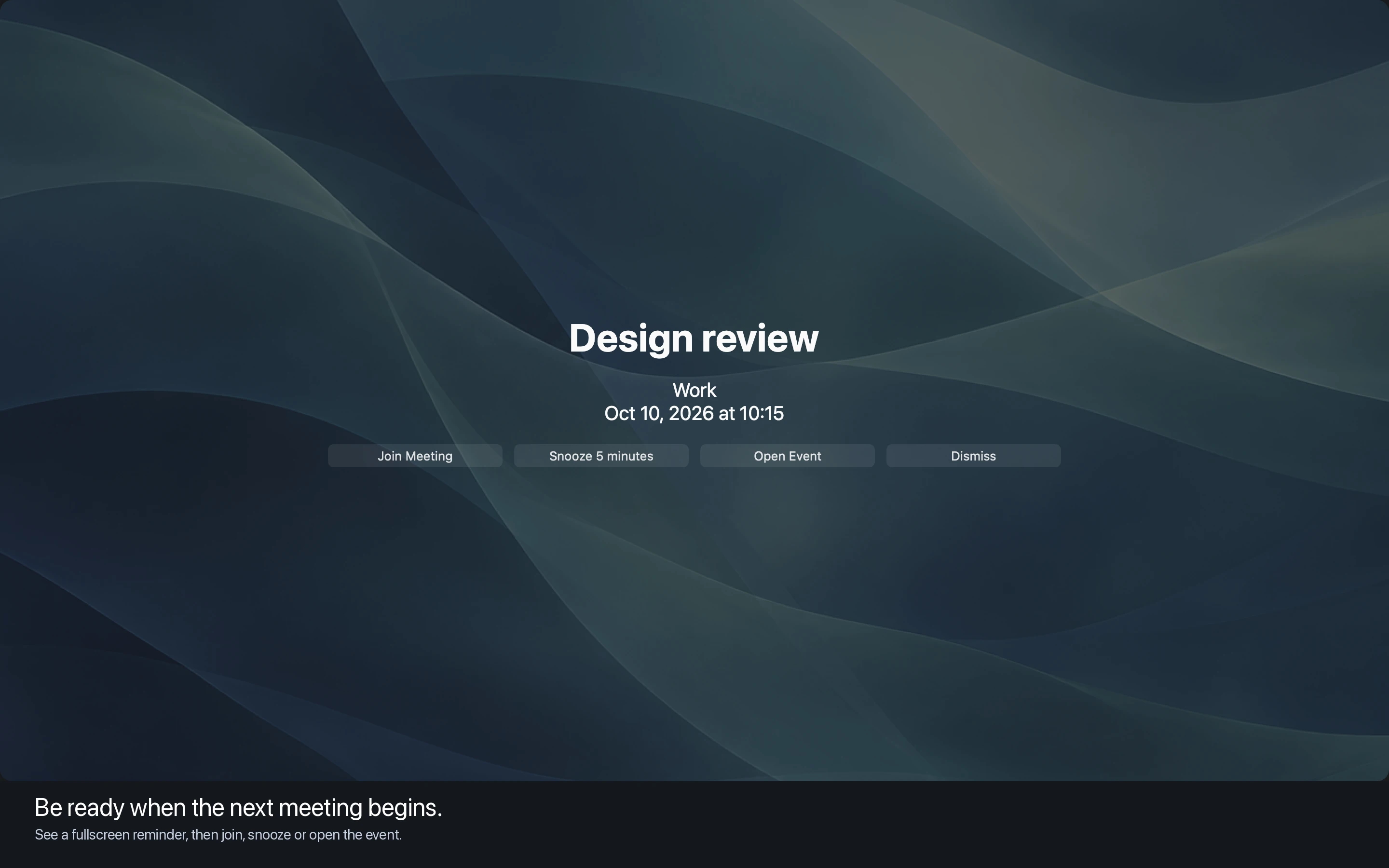
Another tester asked for notifications, including reminders that could fill the screen. I added them and made their presentation customizable too. You can adjust their size, position, appearance, and background, and choose to show them on all displays. Fullscreen reminders work while popCalendar is running.
I would probably not have started with those features. Listening to people who used the app differently gave me reasons to build them, and the calendar became more useful as a result.
From one menu bar icon to a whole display
By this point, popCalendar had grown well beyond the app I originally planned.
The menu bar popup still gives me the quick access and easy dismissal I wanted. For people who prefer to keep a calendar on screen, it can also run in independent windows. You can hide the menu bar icon if you prefer to use it as a standalone calendar.
You can put two years side by side, or keep a month and its events beside both years. Add a background you like, choose a clock, and open the calendar in full screen. You can dedicate an entire monitor to it.
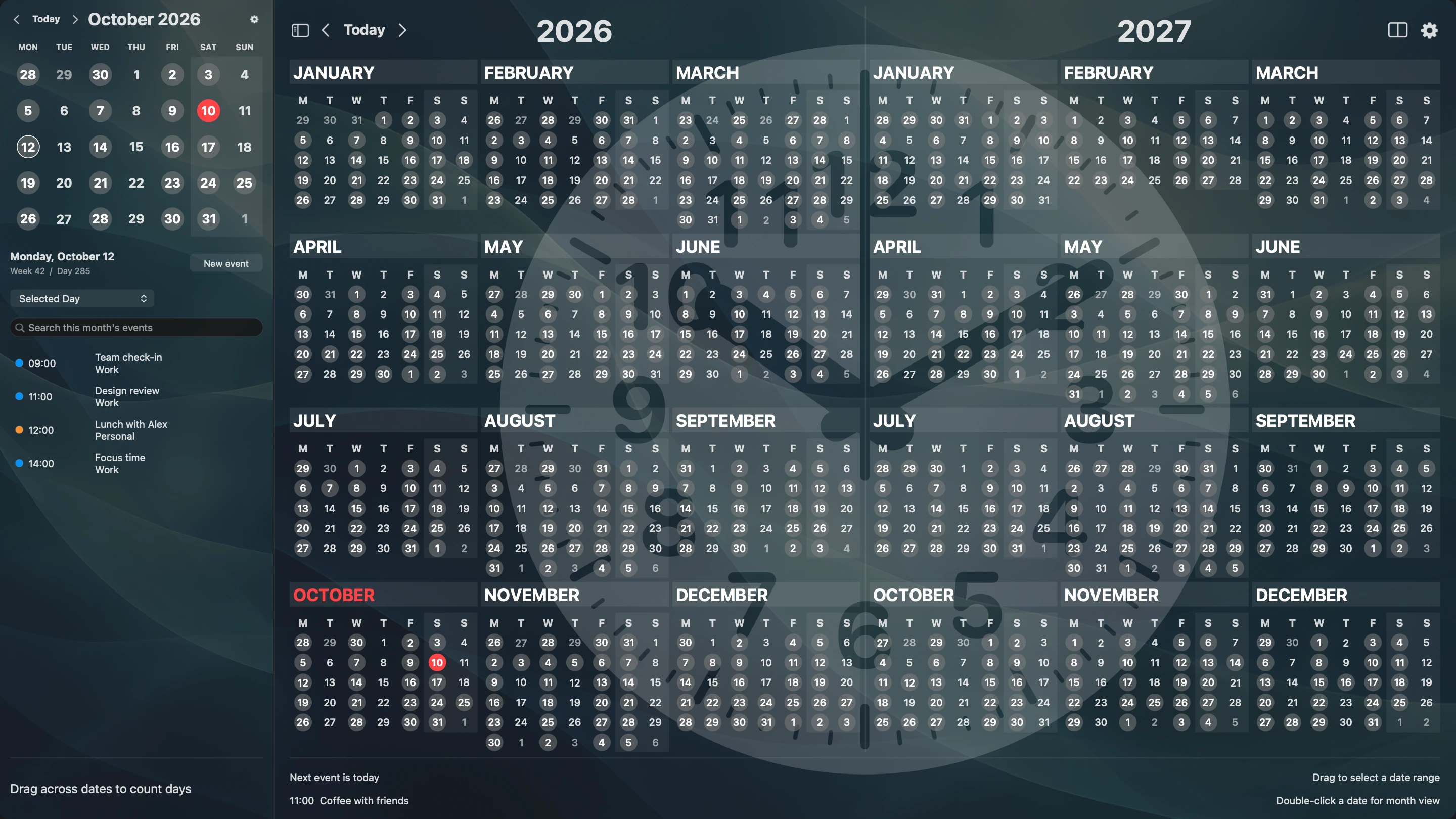
This is the part I enjoy most. I can see how much time has passed, what is coming, and how far apart things are while keeping my events in view. That visual arrangement makes time easier for me to understand.
After all those attempts to use calendars, I found a view I kept returning to. Years later, the thought of losing it pushed me to make something I could keep developing. Each addition came from using it or hearing from someone else who did.
The new popCalendar is now available on the Mac App Store. You can explore it and try it for yourself. Find the view you like, make it feel like yours, and send me your feedback. It already does everything I need, but I am happy to keep improving it and consider features that would make it more useful to you.
My old popCalendar story is over. My new popCalendar story has just begun.